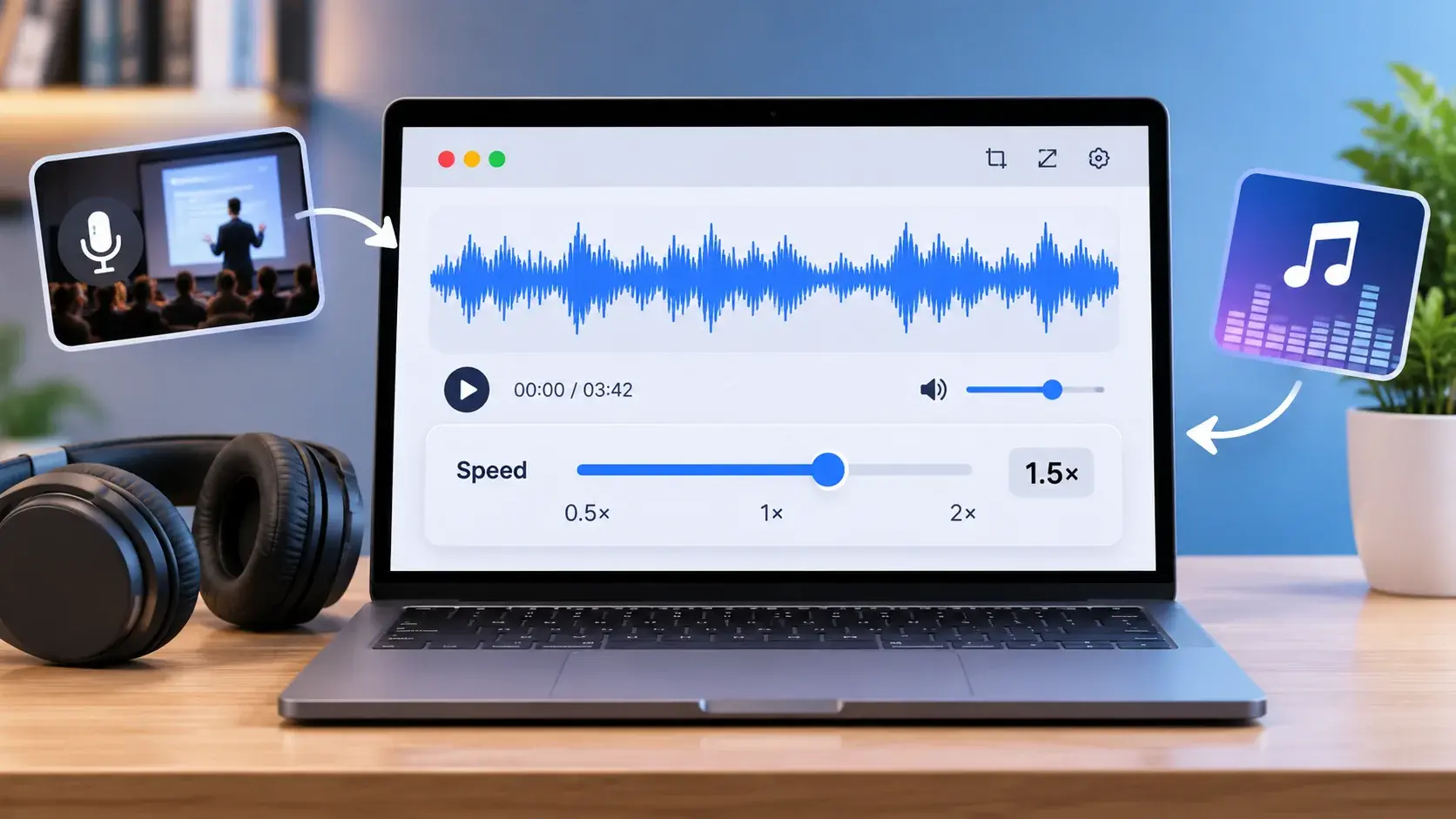
Need to know how to change audio speed online to make an audio file play faster or slower? An online audio speed changer lets you adjust the tempo and create a separate version to listen to or download. That is different from a playback-speed control in a media player, which changes only how you listen.
With theToolsBench Audio Speed Changer, you can select a speed from 0.50× to 2.00×, preview the processed audio, and download the result as an MP3. Its tempo adjustment is designed to keep pitch roughly the same, but extreme changes can still make speech or music sound less natural.
This guide shows you how to change audio speed online, understand speed multipliers, estimate the new duration, and choose a setting while keeping sound quality in mind.
How to Change Audio Speed Online
You can adjust an audio file in your browser using theToolsBench Audio Speed Changer. The process involves selecting a file, setting the desired speed, processing the audio, previewing the result, and downloading the new file.
Follow these steps:
Step 1: Open the Audio Speed Changer
Visit theToolsBench Audio Speed Changer. The tool provides an online interface for adjusting audio tempo without installing a separate desktop audio editor.
Step 2: Select Your Audio File
Drag your audio file into the drop area or click the area to choose a file from your device.
The selected file is loaded into the tool for processing. According to the tool's published information, audio processing happens in your browser rather than uploading the recording to a ToolsBench server.
The page does not publish a complete list of supported input formats or a maximum file size, so check that your selected file loads successfully before proceeding.
Step 3: Choose the Desired Audio Speed
Use the speed slider to make the recording faster or slower. ToolsBench provides a range from 0.50× to 2.00×, with adjustments in 0.05× increments. The slider initially starts at 1.25×.
Here is what common speed settings mean:
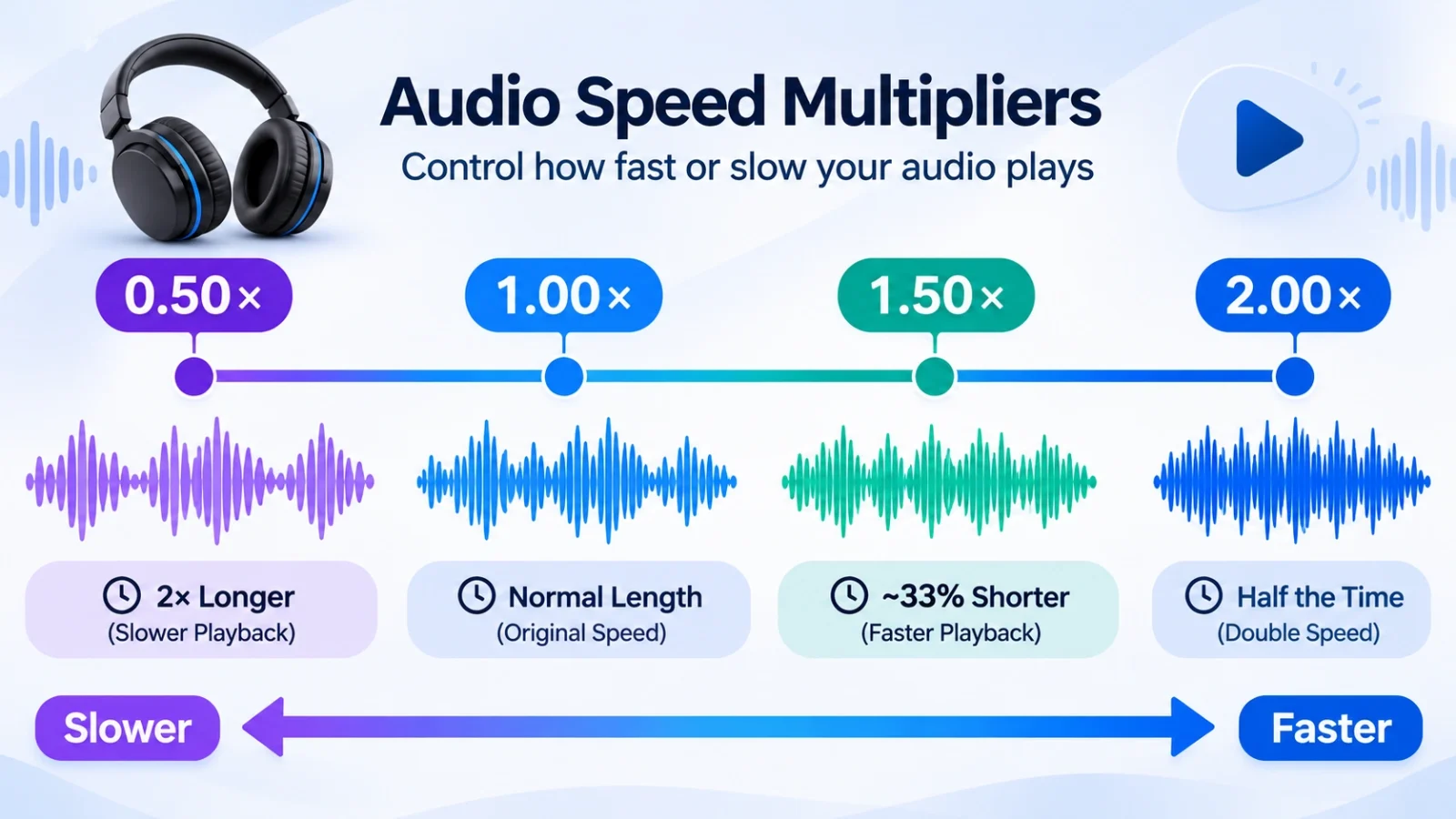
- 0.50×: Plays the audio at half its original tempo.
- 0.75×: Makes the recording slower.
- 0.80×: Plays the audio at 80% of its original tempo.
- 1.00×: Keeps the original tempo.
- 1.25×: Makes the audio faster.
- 1.50×: Plays the audio at one and a half times its original tempo.
- 2.00×: Doubles the original tempo.
Start with a moderate adjustment rather than immediately choosing the slowest or fastest setting. The best speed depends on the recording and how comfortably you can understand or follow it.
Step 4: Click Run and Process the Audio
After choosing a speed, click Run to start processing. A progress bar displays the processing status.
The first time you use the tool, the page downloads an FFmpeg processing engine of approximately 30 MB. This is the engine required for browser-based audio processing, not an upload of your recording.
Allow the process to finish before trying to preview or download the result.
Step 5: Preview the Adjusted Audio
When processing finishes, use the audio player to listen to the result.
Check whether speech is still understandable or whether the music sounds natural enough for your purpose. If the recording is too fast or too slow, adjust the slider and process it again.
When testing alternative speeds, use the original recording as your source rather than repeatedly processing a previously downloaded MP3.
Step 6: Download the New Audio File
When you are satisfied with the result, click Download to save the processed audio.
ToolsBench exports the result as an MP3 file, regardless of the input format. The downloaded filename uses the original name with a -speed suffix. For example, a file named podcast.mp3 may be downloaded as podcast-speed.mp3.
Use Start over when you want to clear the current file and begin another conversion.
What Do Audio Speed Multipliers Mean?
An audio speed multiplier tells you how fast or slowly a recording plays compared with its original tempo.
A multiplier below 1.00× slows the audio down. A multiplier above 1.00× speeds it up. At 1.00×, the recording remains at its original tempo.
For example, a 1.50× setting means the audio plays one and a half times as fast as its original tempo. A 0.75× setting means it plays at 75% of the original tempo.
How to Calculate the New Audio Duration
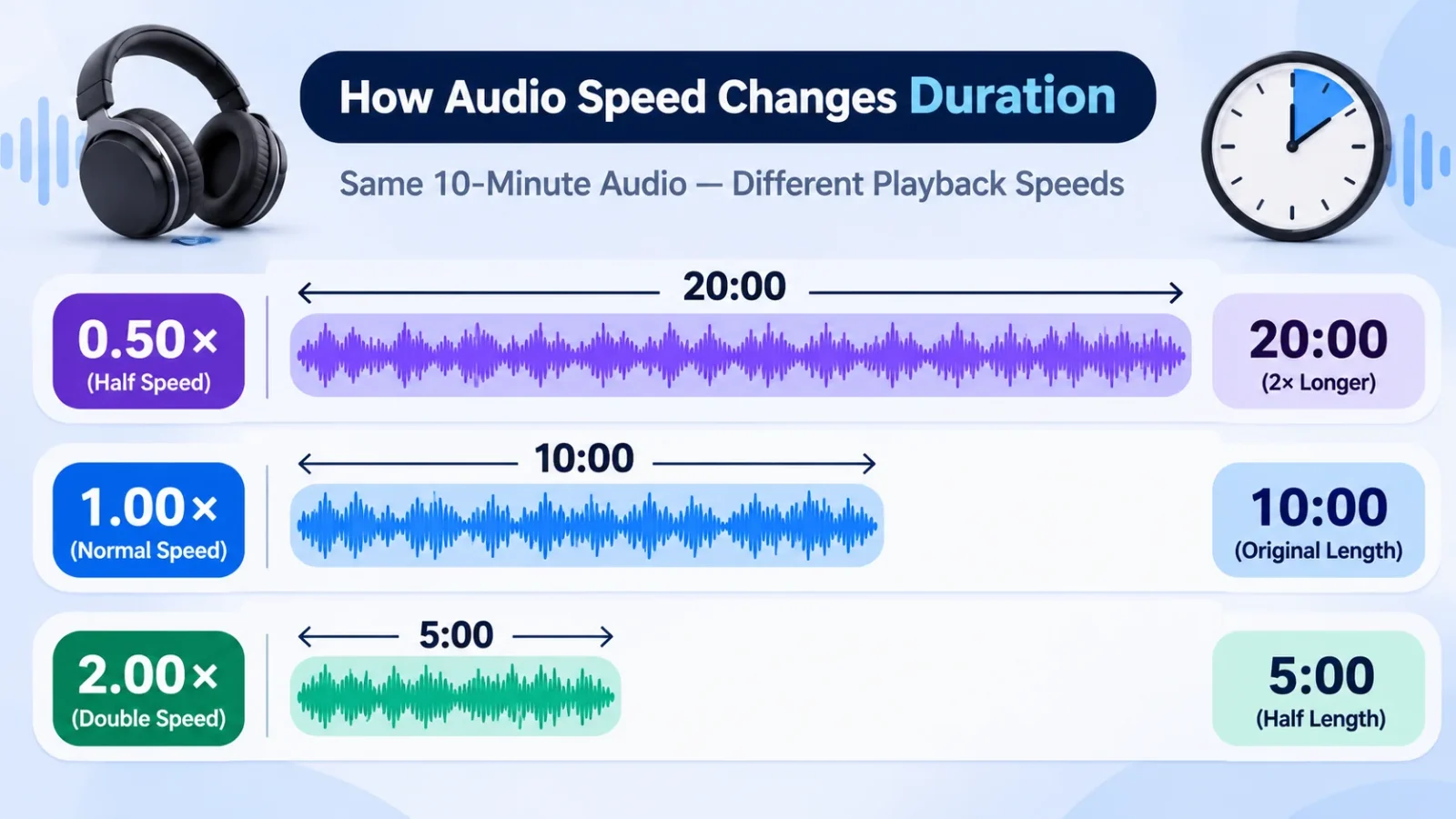
Changing audio speed also changes how long the recording lasts. You can estimate the new duration using this formula:
New duration = Original duration ÷ Speed multiplier
For example, a 10-minute recording played at 2.00× takes approximately 5 minutes. At 0.50×, the same recording takes approximately 20 minutes.
Here are more examples using an original recording that is 10 minutes long:
| Speed setting | Approximate new duration |
|---|---|
| 0.50× | 20 minutes |
| 0.75× | 13 minutes 20 seconds |
| 0.80× | 12 minutes 30 seconds |
| 1.00× | 10 minutes |
| 1.25× | 8 minutes |
| 1.50× | 6 minutes 40 seconds |
| 1.75× | 5 minutes 43 seconds |
| 2.00× | 5 minutes |
Remember that 1.25× does not make a recording 25% shorter. It increases the playback tempo by 25%, but the resulting duration is 8 minutes for a 10-minute recording, which is 20% shorter.
What Is the Difference Between Audio Speed and Pitch?
Audio speed and pitch are related, but they are not the same thing.
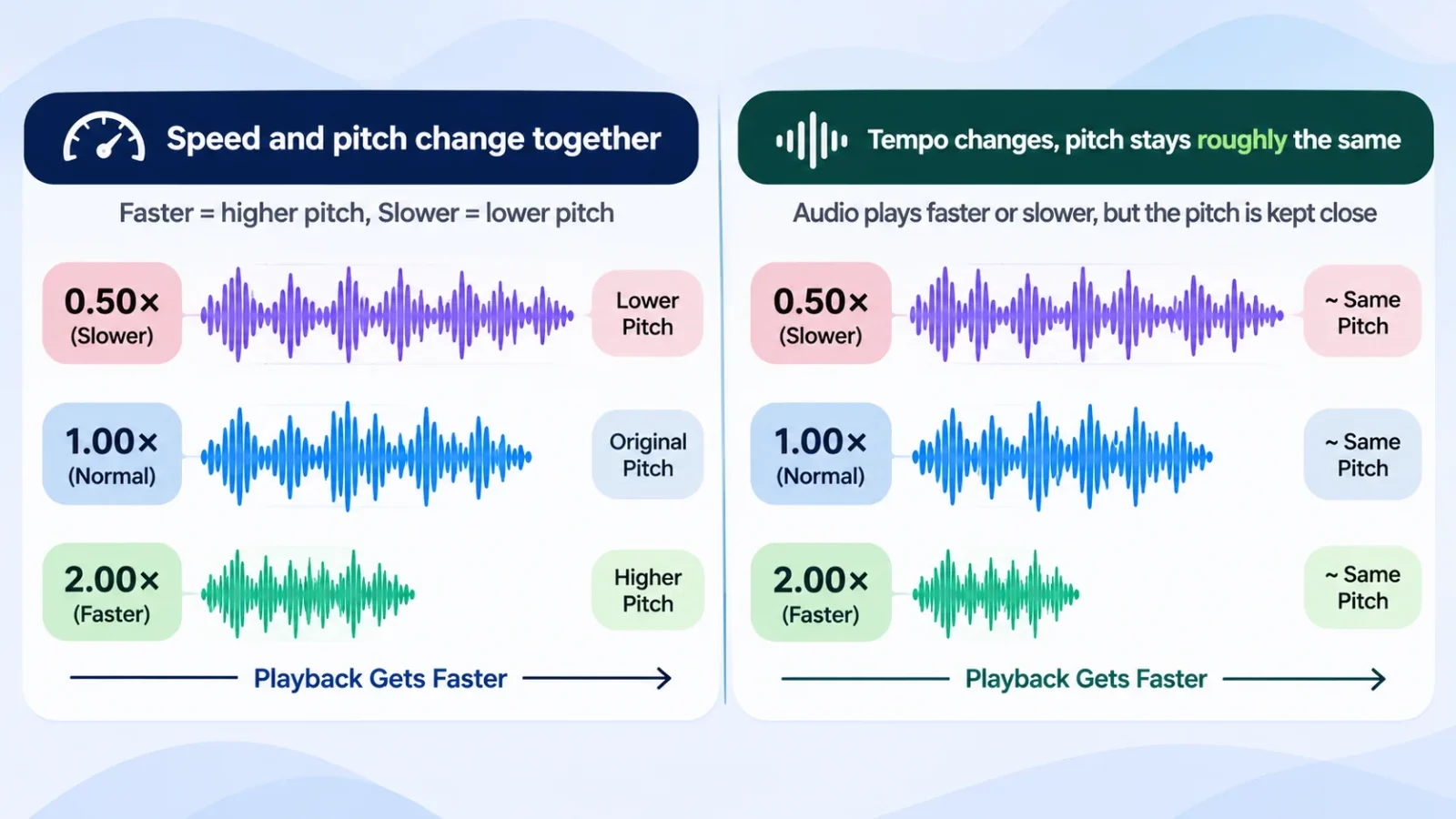
Speed describes how quickly a recording plays. Pitch describes how high or low a sound seems. Some audio-processing methods change both together, while time-stretching methods attempt to change tempo without significantly changing pitch.
Changing Speed and Pitch Together
A basic playback-rate or varispeed adjustment changes the playback rate directly. When audio plays faster, its pitch rises. When it plays slower, its pitch falls.
This creates the familiar fast-forward or slow-motion sound. Voices may sound unusually high when sped up or deeper when slowed down.
Changing Tempo While Keeping Pitch Roughly the Same
A time-stretching method changes the duration of audio while attempting to keep its original pitch. This can be useful when speeding up a lecture without making the speaker's voice sound much higher, or slowing down a music passage without lowering its key.
ToolsBench uses FFmpeg's atempo filter for tempo adjustment. You can read about the filter in theofficial FFmpeg filters documentation. Audacity's documentation also explains the distinction between changing tempo and changing speed and pitch together in its guide toChange Tempo.
Does Pitch Preservation Always Sound Perfect?
No. Keeping pitch roughly consistent does not guarantee that the result will sound identical to the original.
Time-stretching can introduce audible artifacts, such as a watery, echo-like, or smeared sound, particularly when the adjustment is extreme. The effect may be noticeable in speech, sustained musical notes, or sharp percussive sounds. Audacity'sChange Tempo documentation also explains that more extreme tempo changes can cause audible distortion.
For this reason, preview the adjusted recording before downloading it. A technically correct speed setting is not necessarily the most comfortable or natural-sounding one.
What Speed Should You Choose for Different Audio Tasks?
There is no single speed that works best for every recording. Choose a setting according to the content and how you plan to use it.
Speeding Up Lectures and Podcasts
A faster setting can help you review long spoken recordings in less time. You could start with a moderate increase, such as 1.25×, and listen to a short section.
Move toward 1.50× or higher only if the speaker remains easy to understand. If important words begin to blur together, reduce the speed.
Slowing Down Speech and Language Lessons
Slower playback can help when you are learning a language, reviewing an interview, or trying to follow a speaker who talks quickly.
Try a setting such as 0.80× or 0.75× and check whether the words become easier to distinguish. Very slow playback can make speech sound less natural, so use the smallest adjustment that helps.
Slowing Down Music for Practice
Musicians may slow down a passage to listen more carefully to its timing, notes, or rhythm. A moderate adjustment can make a difficult section easier to study.
Listen to the instrumental sounds after processing. Time-stretching can affect transients and sustained notes, so the result may not be suitable for every type of musical practice.
Choose a Comfortable Speed
The goal is not always to reach the highest or lowest available setting. Choose a speed that makes the recording useful while keeping speech or music clear enough for your needs.
Preview the result before downloading it, especially when the recording contains several speakers, background sounds, or complex music.
Does Changing Audio Speed Affect Sound Quality?
It can. The result depends on the original recording, the amount of speed adjustment, the processing method, and the output format.
A moderate change may sound acceptable, but more extreme adjustments can make audio less natural. Listen for unclear speech, echo-like sounds, smearing, or changes in musical detail. Time-stretching can introduce artifacts, particularly with more substantial changes.
Why Extreme Speed Changes Can Sound Less Natural
When audio-processing software changes tempo while attempting to preserve pitch, it has to reshape the audio. Larger adjustments can make that process more noticeable.
For example, slowing a recording too much may make speech sound stretched or muddy. Increasing the speed significantly may make words difficult to follow, even when the pitch remains roughly consistent.
Preview Before Downloading
Always listen to the processed version before saving it. Try a smaller adjustment when the result sounds unnatural.
It is also useful to keep the original recording. That way, you can create another version using a different speed without relying on an already processed file.
Why Does the ToolsBench Audio Speed Changer Export MP3?
The ToolsBench Audio Speed Changer provides the processed result as an MP3 file. This keeps the download workflow consistent, but it is important to understand what that means for audio quality.
Is MP3 a Lossless Audio Format?
No. MP3 is a lossy audio format. It uses compression to reduce file size by discarding or reducing some audio information. TheLibrary of Congress description of MP3 explains this perceptual-coding approach.
An MP3 export may be convenient for everyday listening and sharing, but it should not be described as a lossless copy of the original recording. The ToolsBench speed changer exports MP3 even when the source file is in a different format.
How to Avoid Repeated MP3 Quality Loss
Repeatedly processing and exporting an MP3 can cause additional quality loss because MP3 is a lossy format. The ToolsBench page specifically advises processing alternative speeds from the original file rather than stacking changes on previously processed MP3 files.
For example, suppose you make a 1.25× version, download it, and then use that downloaded MP3 to create a 1.50× version. The second export is based on audio that has already been encoded.
A better approach is to keep your original recording and create each alternative speed version from that original file. This avoids unnecessary repeated MP3 encoding.
How Does Browser-Based Audio Processing Work?
Browser-based audio tools perform their processing through software that runs in your web browser rather than requiring a separate desktop application.
ToolsBench's Audio Speed Changer uses FFmpeg in the browser to process the selected recording. Its published tool page says the audio file is processed locally and is not uploaded to ToolsBench's server.
Why Does the Tool Download an Engine on First Use?
The tool needs its audio-processing engine to perform the conversion. On first use, the browser downloads an FFmpeg engine of approximately 30 MB.
This download is separate from the audio file you select. It provides the processing capability required by the tool.
Does ToolsBench Upload Your Audio File?
According to the published Audio Speed Changer page, the file is processed in your browser and is not uploaded to ToolsBench's server.
ToolsBench'sPrivacy Policy provides further information about file handling. It also describes website-level data collection, including Google Analytics, advertising cookies, and standard server logs. Its policy states that Google Analytics does not receive the files or text submitted to its tools. Browser-based file processing should therefore not be confused with a claim that the website collects no usage information.
Why Can Processing Take Longer?
Browser processing time can vary. Longer recordings and the available memory and processing resources on your device can affect how quickly a conversion finishes.
The progress bar indicates the processing status. Allow the process to complete before previewing or downloading the result. If you only need a short section of a long recording, you may prefer to trim it first with anAudio Cutter.
Common Audio Speed Changing Problems and How to Avoid Them
The audio sounds too fast or too slow. Choose a smaller adjustment and preview the result again. You do not need to use the maximum speed setting to make a recording easier to follow.
The voice sounds unnatural. A tempo adjustment may preserve pitch roughly, but it cannot guarantee identical sound quality. Try a less extreme setting.
The first conversion takes longer than expected. The browser may be downloading the FFmpeg engine for the first time. This download is separate from your recording.
The downloaded file is an MP3. That is the tool's published output format. Keep the original if you also need to preserve the source format.
The audio sounds worse after several conversions. Avoid repeatedly processing downloaded MP3 versions. Return to the original recording and create each alternative speed from it.
You only want to listen faster, not create another file. A playback-speed setting in your media player may be more convenient. Use an audio speed changer when you need a separate adjusted file to download.
You want to remove a section rather than change the tempo. Speed adjustment does not trim a recording. Use theToolsBench Audio Cutter when you need to remove unwanted sections or keep only a particular part.
Conclusion
Changing audio speed online can make lectures, podcasts, language lessons, and music easier to review or study. The important thing is to choose a suitable tempo, understand how speed affects duration, and listen to the result before saving it.
TheToolsBench Audio Speed Changer lets you adjust audio from 0.50× to 2.00×, preview the processed recording, and download it as an MP3. Its tempo adjustment is designed to keep pitch roughly consistent, although extreme changes can still affect sound quality.
Start with a moderate speed adjustment, compare the result with your original recording, and download the version that works best for your needs
Frequently asked questions
Can I change audio speed without changing pitch?
Yes. A time-stretching method can change audio tempo while attempting to keep pitch roughly consistent. ToolsBench uses FFmpeg's atempo filter for its tempo adjustment. However, pitch preservation does not guarantee that every recording will sound exactly the same after processing.
What is the normal audio speed setting?
The normal speed setting is 1.00×. It represents the recording's original tempo. Settings below 1.00× slow it down, while settings above 1.00× make it faster.
Can I speed up audio to 2×?
Yes. The ToolsBench Audio Speed Changer supports speeds up to 2.00×. At that setting, a 10-minute recording takes approximately 5 minutes to play.
What format does the ToolsBench Audio Speed Changer download?
The tool exports the processed recording as an MP3 file, regardless of the input format. The downloaded filename adds -speed to the original filename.
Why does the audio speed changer download a file on first use?
The tool downloads its FFmpeg processing engine, approximately 30 MB, when you use it for the first time. This engine allows the browser to process audio. It is not the audio recording being uploaded.
Will changing audio speed reduce sound quality?
It can. More substantial speed adjustments may introduce artifacts or make speech and music sound less natural. The tool also exports MP3, which is a lossy format. Preview the result and keep your original recording so you can make another version when needed.