Productivity & Online Tools
How to Choose the Right Online Tools: Start by Understanding What You Need to Do
- By Fayaz Ali
- 10 min read
Knowing how to choose the right online tools matters when you need to resize an image, convert a document, reduce a PDF file or make a quick calculation. You search online and find dozens of tools offering similar features. Some require an account, others ask you to upload your files, and a few introduce payment prompts just when you are ready to download the result.
Choosing the right tool can sometimes take longer than completing the actual task.
Online tools have made everyday digital work easier, but not every tool is suitable for every situation. A PDF compressor might reduce a document's size but affect its text, while an image converter may change the file format without improving its quality.
The key is to understand what you need before choosing a tool. Knowing what to check can help you avoid unnecessary steps, protect your files and get the result you actually want.
1. Start by Understanding What You Need to Do
Before searching for an online tool, identify the actual task. It sounds obvious, but many people start looking for a popular tool without considering what they need it to accomplish.
For example, imagine you need to prepare an image for a website. Do you want to reduce its file size, change its format, resize its dimensions or remove its background? These are different tasks, and each requires a different tool.
The same applies to PDF documents. Merging several files, extracting text, compressing a document and protecting it with a password are separate operations.
Start by asking yourself three questions:
- What problem am I trying to solve?
- What should the final result look like?
- Are there specific requirements, such as file size, format or quality?
Once you have these answers, finding the right tool becomes easier. You can search for a specific solution instead of trying several unrelated options.
2. Check Whether the Tool Supports Your File Format
File compatibility is one of the first things to consider when choosing an online tool.
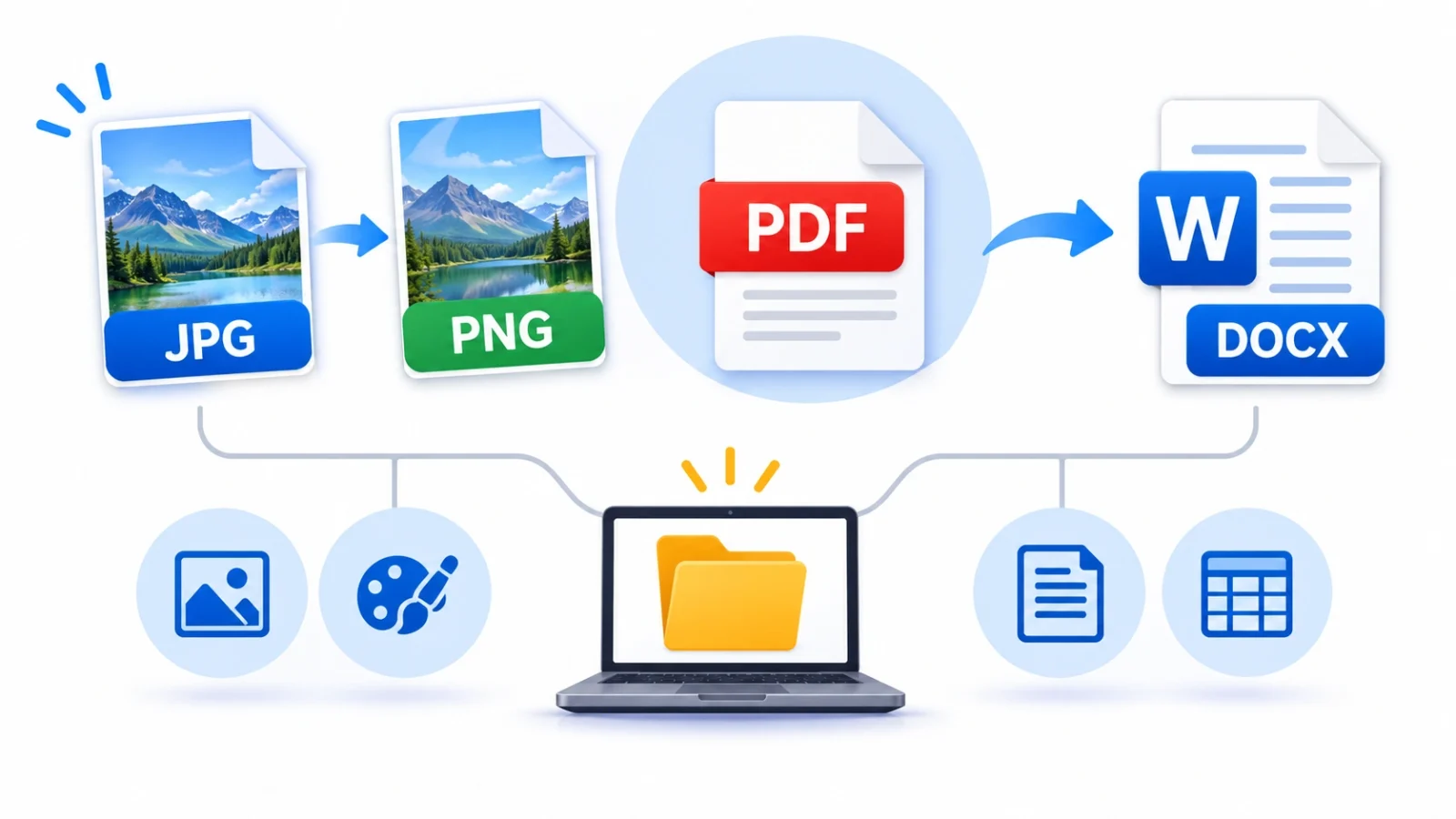
Different file formats serve different purposes. JPG is widely used for photographs, while PNG is useful for graphics that need transparency. PDF is commonly used for sharing documents, whereas Word documents are designed for editing.
A tool might support one format but not another. It may also accept a particular file type while offering limited export options.
Before using a tool, check:
- Which file formats can you upload?
- Which formats are available for download?
- Does it support multiple files?
- Can it preserve the features you need?
- Does it work with your particular file type?
Consider converting a scanned PDF into an editable Word document. A standard conversion process may not be enough because a scanned page can contain an image of text rather than selectable characters. You may need optical character recognition (OCR) to recognize the text before editing it.
For example,ToolsBench PDF to Word offers an editable conversion option as well as an exact-copy option. The distinction matters: an editable document allows you to change the text, while an exact copy preserves the page appearance as images.
Understanding these differences helps you avoid choosing a tool that processes your file but does not deliver the result you expected.
3. Consider the Quality of the Final Result
Completing a task is only part of the process. The result should also meet your requirements.
Some online tools change more than users expect. Image compression can reduce file size, but aggressive settings may create visible artifacts. Converting a document can affect its formatting, while changing an audio file's playback speed may also change its pitch.
Think about what matters most for your task.
If you are preparing a photograph for a website, file size and visual quality might both be important. If you are converting an invoice, preserving readable text and tables may matter more than reducing the document's size.
It is also worth understanding the difference between resizing and compressing an image. Resizing changes its pixel dimensions, while compression reduces the amount of data used to store it. You may need one or both, depending on the situation.
For these tasks, you can explore theImage Resizer andImage Compressor.
Another useful consideration is whether the tool allows you to preview the output before downloading it. When possible, test different settings using a copy of the original file.
Remember that changing a file's extension does not necessarily convert its actual format. A file named PNG is not automatically a valid PNG image simply because its extension has changed.
The best tool is the one that produces a result suitable for your intended use, not necessarily the one that completes the process fastest.
4. Understand How the Tool Handles Your Files
Privacy deserves serious attention, particularly when working with personal documents, financial records, business information or photographs.
Many online tools ask you to upload a file before processing it. However, not all tools handle files in the same way. Some process everything inside your browser, while others send files to remote servers or external services.
Before uploading anything, look for a privacy policy that explains:
- Whether your files are uploaded to a server.
- How long uploaded information is retained.
- Whether third-party services are involved.
- Whether files are used for other purposes.
- Whether you need an account to use the tool.
Browser-based processing can offer an additional level of privacy because files can remain on your own device rather than being transferred to a website's servers. However, this should be verified for the individual tool rather than assumed.
For example, mostToolsBench tools process files directly in your browser. ItsPrivacy Policy also explains exceptions, including services that rely on external resources or browser speech recognition.
This distinction matters because an online tool's privacy practices are not determined simply by whether it requires an account.
For sensitive business or personal documents, use software approved by your organization and avoid uploading information to services whose data-handling practices you cannot verify.
5. Look Beyond the Word "Free"
Finding a free online tool is useful, but free access does not always mean that every feature is available without restrictions.
Some websites allow you to upload a file and complete the process but introduce restrictions when you try to download the result. Others limit file sizes, daily conversions or access to advanced features.
You might also encounter watermarks, mandatory registrations, subscription prompts or advertisements that make the experience less convenient.
Before starting, check the following:
File size limits: Can the tool handle your document or image?
Usage restrictions: Are there daily limits or restrictions on processing multiple files?
Watermarks: Will the downloaded result contain unwanted branding?
Account requirements: Can you use the tool without providing an email address?
Payment conditions: Are the features you actually need available for free?
These details are particularly important when working under a deadline. Discovering a download restriction after processing several documents can waste valuable time.
A good tool should explain its limitations before you invest time in using it.
6. Choose Tools That Are Easy to Use
A useful online tool should make your work simpler, not introduce another complicated process.
You should be able to understand what the tool does, what information it requires and how to obtain the result without reading lengthy instructions.
Look for a clear interface, understandable options and straightforward download steps.
It is also worth considering whether the tool works on your preferred device. Some browser-based utilities are designed to work on desktops, tablets and smartphones, while others may require a larger screen or more processing power.
For example, someone who regularly prepares photographs for social media will benefit from a tool with clear dimensions and accessible resizing options. ASocial Media Image Resizer can be useful when images need to fit specific platform dimensions.
Also check whether a website requires additional software or browser extensions. For occasional tasks, a tool that runs directly in a browser may be more convenient than installing another application.
Ease of use becomes especially important when you perform the same task regularly.
7. Test the Tool Before Relying on It
Even when a tool appears suitable, it is worth testing it before using it for important work.
Start with a sample file rather than immediately processing an important document. This gives you an opportunity to understand the settings, processing time and quality of the output.
After processing, compare the result with the original.
For an image, check its dimensions, file size and visual appearance. For a PDF, make sure the pages are readable and in the correct order. For a converted document, check whether tables, headings and other formatting elements have been preserved.
For example, when reducing a PDF's file size, remember that some compression methods re-render pages as images. This can make previously selectable text non-selectable. TheToolsBench Compress PDF tool explains this limitation, so you can decide whether that type of compression is appropriate for your document.
You can also tryMerge PDF when combining several documents into one file.
Testing helps you understand these differences before they become a problem.
8. Match the Tool to Your Everyday Workflow
The right online tools can save time when they become part of a practical workflow.
Instead of searching for a new website every time you encounter a task, identify a few reliable tools for the activities you perform regularly.
For example:
- Image work: Use image resizers, compressors and format converters when preparing photographs or graphics.
- Document management: Keep useful PDF tools for merging, splitting, compressing and converting documents.
- Audio and video: Use suitable media tools for adjusting playback speed, changing formats and preparing files.
- Text and writing: Keep text formatting, case conversion and word-count tools available for everyday writing tasks.
- Development work: Use JSON formatters, validators and other developer utilities when working with structured data.
- Calculations: Use calculators and unit converters when you need quick results without opening separate applications.
For developers, aJSON Formatter can make structured data easier to read and inspect. For everyday measurements, theUnit Converter Hub provides options for converting different types of units.
You do not need dozens of websites to handle ordinary digital work. A small collection of reliable tools is often more useful than constantly switching between unfamiliar options.
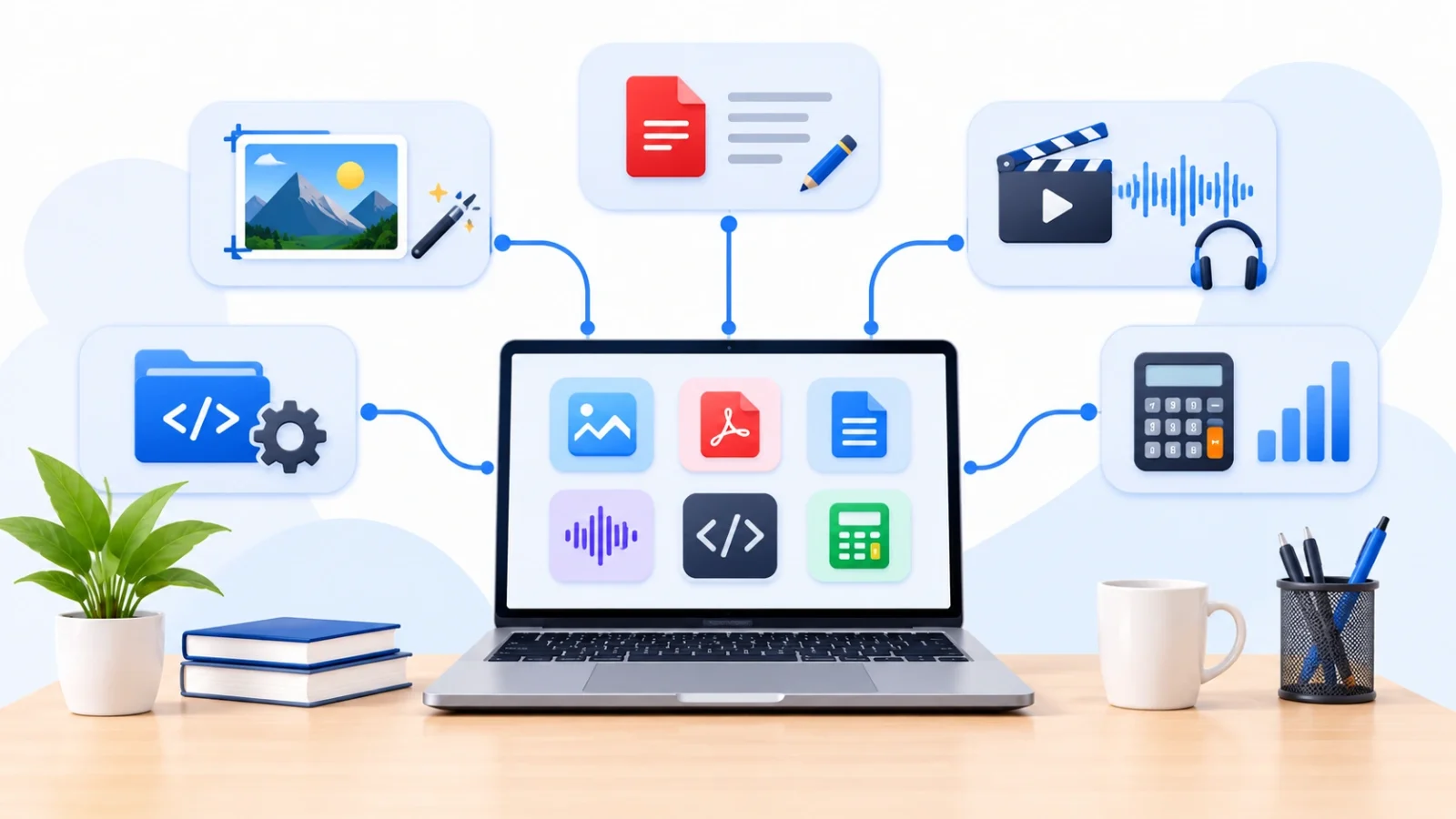
ToolsBench brings these types of utilities together in one place, covering images, PDFs, documents, converters, audio, video, text, developer tools and other everyday tasks. Its tools are free to use without sign-up, and most run directly in your browser. You canbrowse all ToolsBench tools to find a utility that matches your requirements.
9. Keep Your Original Files Safe
One simple habit can prevent a lot of unnecessary frustration: always keep a copy of the original file before making major changes.
This is especially important when compressing images, converting documents, editing media or modifying files in ways that may not be reversible.
For example, a compressed image may look acceptable on a small screen but appear blurry when enlarged. A converted document might lose some formatting that you need later.
Keeping the original allows you to try another method without starting from scratch.
It is also good practice to give processed files clear names so you can distinguish them from the originals. This makes document management easier when working with several versions of the same file.
Final Thoughts
Choosing the right online tool does not have to be complicated. The key is to understand your task, check file compatibility, consider the quality of the result and pay attention to privacy and usage restrictions.
A tool should solve your problem without creating unnecessary work. It should also be clear about what it can do and where its limitations lie.
Rather than choosing the first result you find online, take a moment to evaluate your options. Test the tool, check the output and keep your original files safe.
Once you know which tools work well for your everyday tasks, you can spend less time searching for solutions and more time getting your actual work done.
Conclusion
Choosing the right online tool doesn’t have to be complicated. Start with what you actually need to do, check that the tool supports your file format, and look at the quality of the final result. Then take a moment to understand how your files are handled, and read the fine print behind the word “free.”
A few simple habits make a big difference: test with a sample file, compare the output with the original, and always keep a copy of the original before making major changes. With a small set of reliable tools for the tasks you repeat most, you can spend less time searching and more time finishing your work.
If you’re looking for a place to start, you can browse all ToolsBench tools for images, PDFs, documents, converters, audio, video, text and developer utilities. They are free to use without sign-up, and most run directly in your browser.
Frequently asked questions
How do I choose the right online tool for a task?
Start by defining the exact task. Resizing, compressing and converting an image are different jobs, and so are merging, compressing and protecting a PDF. Once you know the result you want (format, file size, quality), search for a tool built for that specific job.
Are free online tools safe to use?
It depends on the tool. Check the privacy policy to see whether files are uploaded to a server, how long they are kept, and whether third-party services are involved. Browser-based tools can keep files on your own device, but verify this for each tool instead of assuming it. For sensitive business or personal documents, use software approved by your organization.
What is the difference between resizing and compressing an image?
Resizing changes the pixel dimensions of an image, such as making it smaller in width and height. Compression reduces the amount of data used to store it, which lowers the file size. Depending on your goal, you may need one or both. The Image Resizer and Image Compressor handle each separately.
Why can’t I edit the text after converting a scanned PDF?
A scanned page often contains an image of text instead of selectable characters, so a standard conversion can’t turn it into editable text. You usually need optical character recognition (OCR) first. Some tools, like ToolsBench PDF to Word, offer both an editable option and an exact-copy option, so choose the one that matches what you want.
Should I keep the original file before using an online tool?
Yes, always. Compression, conversion and editing can be hard to reverse, and a compressed image may look blurry when enlarged. Keeping the original lets you try another method without starting over. Giving processed files clear names also helps you tell versions apart.
Does compressing a PDF affect its text?
Sometimes. Some compression methods re-render pages as images, which can make previously selectable text non-selectable. Read the tool’s notes before you compress, as the Compress PDF tool explains this limitation, and test with a copy of your document first.