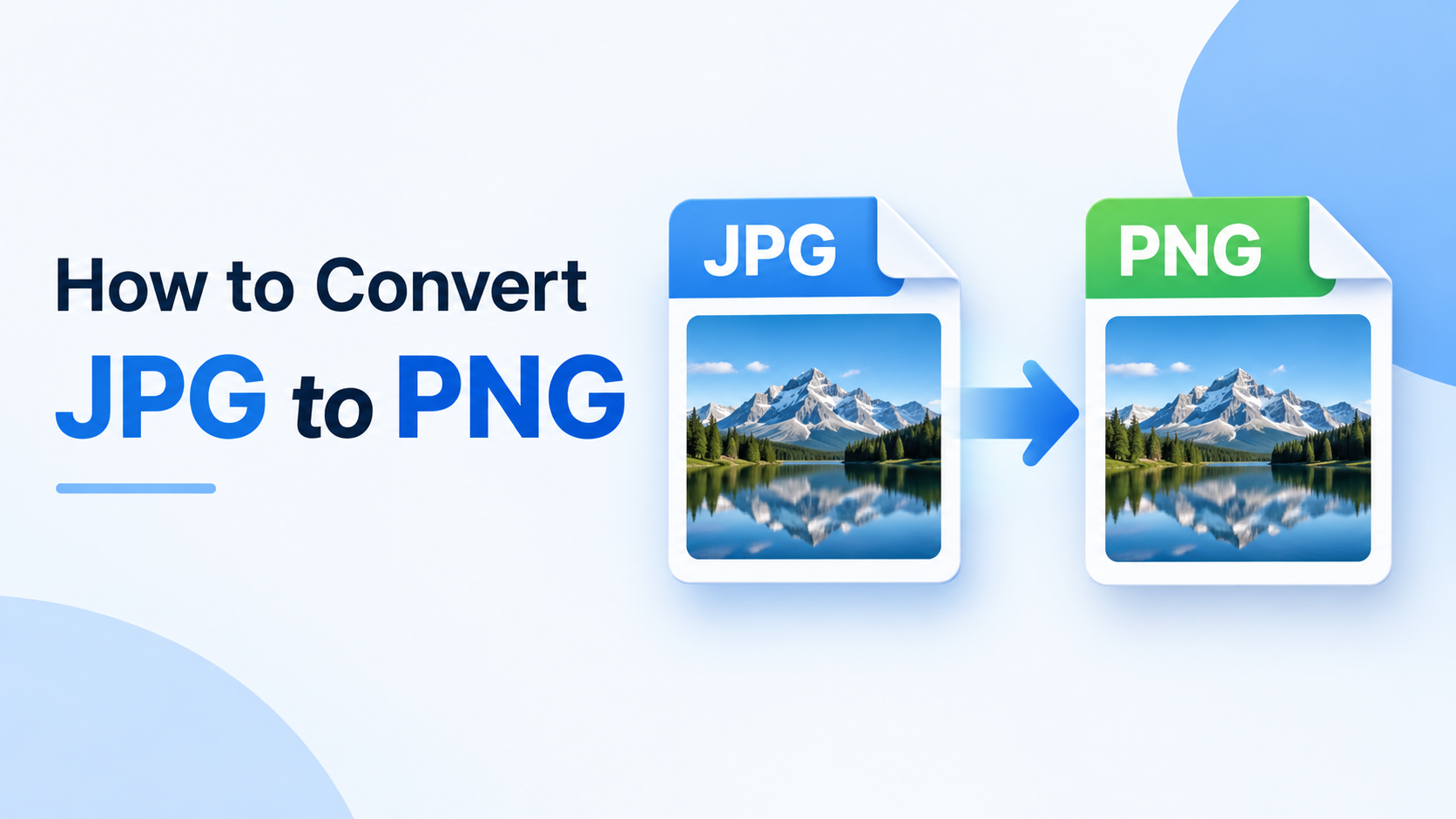
To convert JPG to PNG, open your JPG image in an online converter or image editor, select PNG as the output format, and save or download the newly converted file. You can also use built-in applications such as Microsoft Paint on Windows or Preview on Mac.
This guide explains how to convert JPG to PNG step by step, verify that your file was converted correctly, and understand what happens to image quality, transparency, and file size.
How to Convert JPG to PNG Online
An online converter lets you change an image's format without installing additional software.
You can use theToolsBench JPG to PNG converter to perform the conversion.
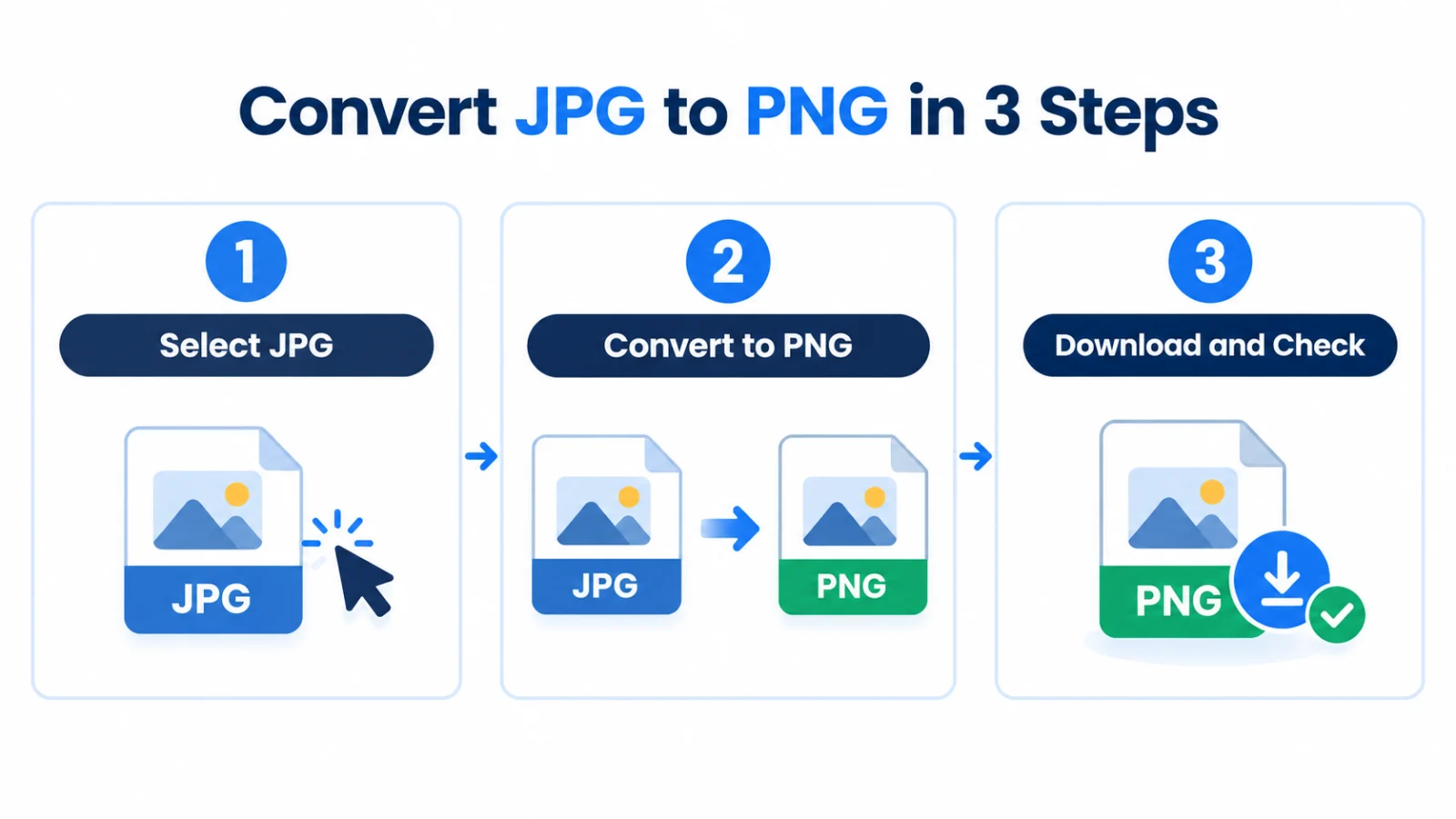
Step 1: Open the JPG to PNG Converter
Open the ToolsBench converter in your web browser and locate the JPG image you want to convert.
Step 2: Select Your JPG Image
Use the converter's file-selection option to choose the JPG from your device.
Make sure you have selected the correct image before continuing.
Step 3: Convert the Image to PNG
Follow the on-screen instructions to convert the selected JPG into PNG format.
A proper conversion creates a PNG-encoded image rather than simply changing the original file's extension.
Step 4: Download and Check the PNG
Download the PNG when it is ready, then open it to confirm that it displays correctly.
If you need the file for a form or application, check any additional requirements, such as file size or dimensions.
How to Convert JPG to PNG on Windows
Microsoft Paint offers a built-in way to convert JPG images to PNG on Windows without using an online converter.
Convert a JPG Using Microsoft Paint
- Locate your JPG image and open it in Microsoft Paint.
- Open the File menu and find Save as.
- Choose PNG picture, or select PNG from the available save-format options.
- Enter a filename and choose where to save the converted image.
- Save the file, then open the new PNG to check the result.
Menu names and locations may vary slightly between Paint versions.
Consider naming the output photo-converted.png so you can distinguish it from the original photo.jpg.
How to Convert JPG to PNG on Mac
Mac users can convert JPG files with Preview, the built-in image and PDF viewing application.
Convert a JPG Using Preview
- Open the JPG image in Preview.
- Select File → Export.
- Open the Format menu and choose PNG.
- Choose a filename or save location.
- Click Save.
Preview exports the image as PNG using the selected settings.
Open the saved file to confirm that it displays correctly.
These steps are also described inApple's official Preview conversion guide.
How to Check If Your Image Was Converted to PNG
After converting your JPG, verify the result—especially when a website or application specifically requires PNG.
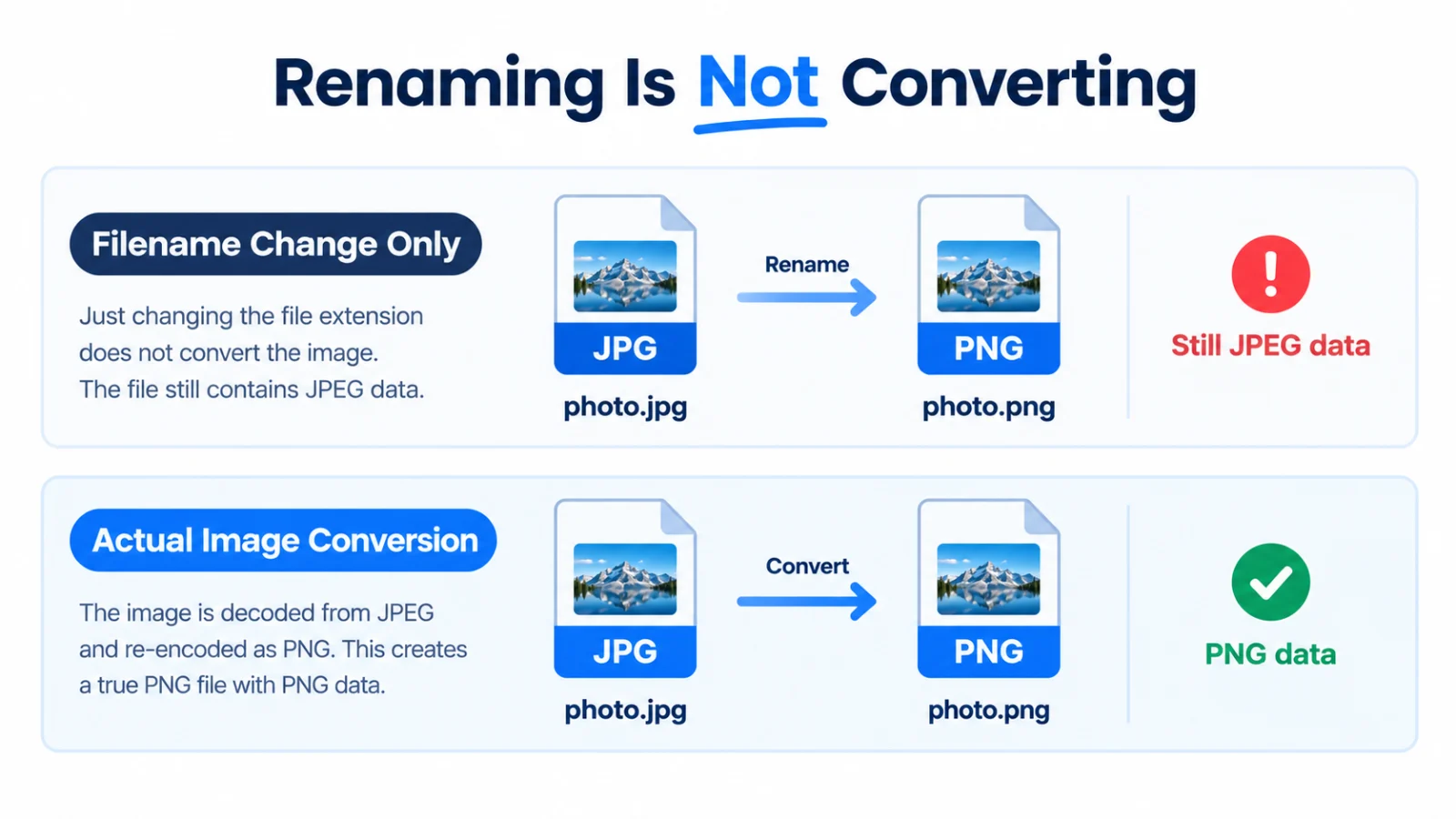
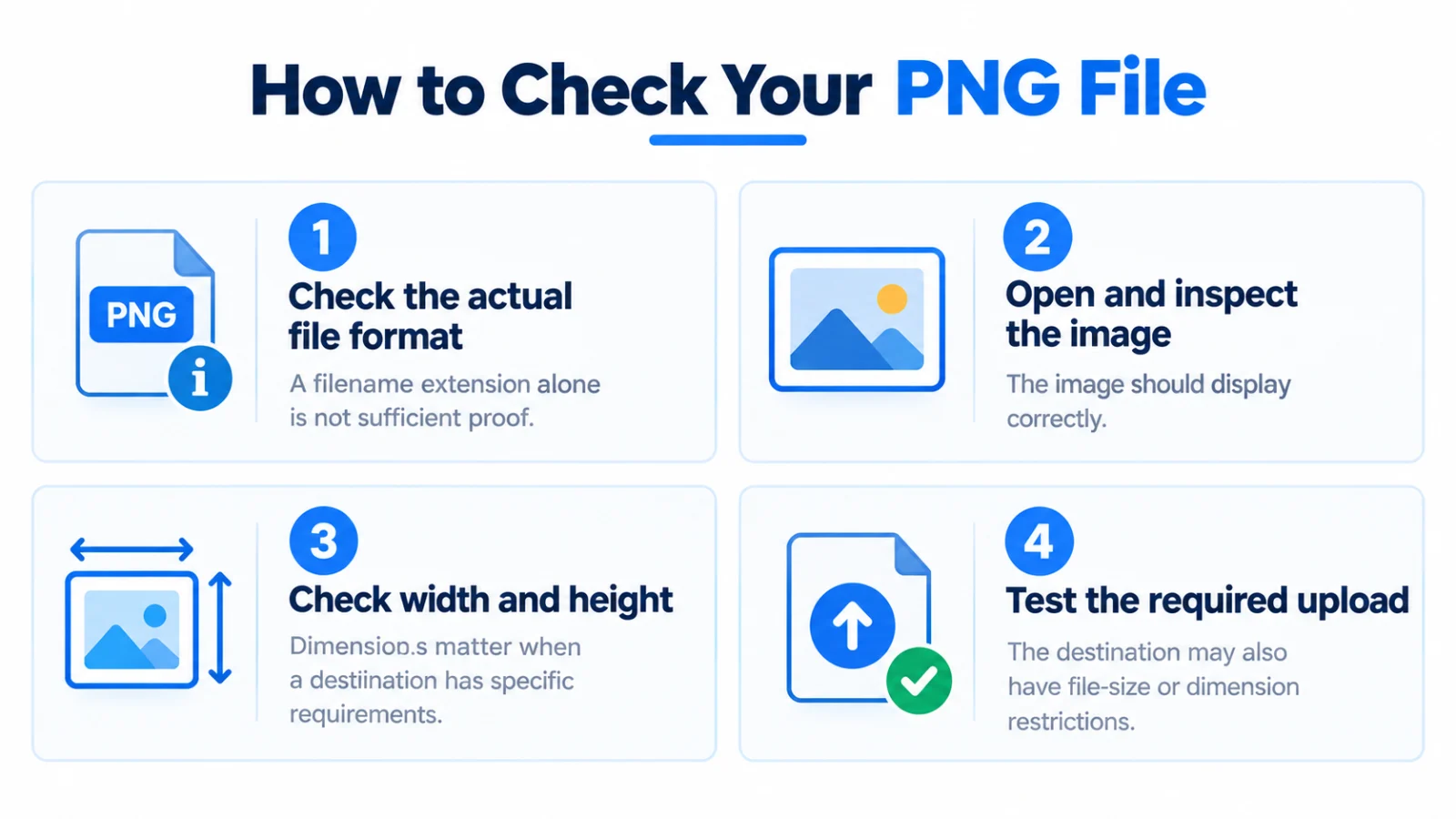
A .png filename is useful, but it does not prove that the file contains PNG-encoded image data.
Check the File Format, Not Just Its Extension
For example, renaming photo.jpg to photo.png changes the filename but leaves the original JPEG encoding unchanged.
An actual conversion reads the JPG and creates a new PNG-encoded file.
To verify the result, open the file in an image viewer or editor that can identify the actual file format from its contents, rather than relying only on the filename.
Check the Image Appearance and Dimensions
Open the PNG and inspect its appearance, orientation, and important details.
If your destination requires particular dimensions, check the output's width and height.
For example, a JPG measuring 1200 × 800 pixels can remain 1200 × 800 pixels after conversion if the converter does not resize or otherwise change its dimensions.
Also check the file size if there is an upload limit.
Test the PNG in Its Intended Destination
If you converted the image for an upload form or application, try using the new file there.
A valid PNG can still be rejected because of separate limits on file size, dimensions, or other requirements.
Can You Convert JPG to PNG Without Losing Quality?
Converting JPG to PNG can preserve the image's decoded pixel data, but it cannot recover detail already lost through JPEG compression.
Ordinary JPG images typically use lossy compression, which discards some information to reduce file size. PNG uses lossless compression, which preserves the pixel data supplied during encoding.
If the original JPG already looks blurry or contains visible compression artifacts, converting it to PNG will not automatically remove those imperfections.
The key difference is preservation versus restoration: a straightforward PNG export can preserve the decoded image without additional JPEG-style lossy compression, but it cannot recreate details already lost.
If a higher-quality original is available, use that instead of expecting format conversion to improve the existing JPG.
For additional technical context, seeMDN's image file type and format guide.
Does Converting JPG to PNG Make the Background Transparent?
No. JPG-to-PNG conversion does not automatically remove an image's background.
PNG supports transparent and partially transparent pixels, but an ordinary JPG does not contain a conventional alpha channel.
For example, converting a product photograph with a white background into PNG normally leaves that white background visible.
To create transparency, you must remove or edit the background separately and save the result in a transparency-supporting format, such as PNG.
Remember: PNG supports transparency; conversion alone does not create it.
Why Is My PNG File Larger Than the JPG?
A PNG converted from a photograph is often larger than the original JPG.
JPEG typically reduces photographic file sizes through lossy compression, while PNG stores image data using lossless compression.
However, PNG files are not always larger. The result depends on image content, compression settings, color representation, and other processing.
If your PNG exceeds a website's upload limit, you may need to resize or optimize it separately.
Changing the format does not guarantee a smaller file.
JPG to PNG: Common Mistakes to Avoid
These mistakes can prevent a successful conversion or create incorrect expectations.
| Common mistake | Why it matters | What to do |
|---|---|---|
| Renaming .jpg to .png | The actual encoding does not change | Convert or export the image properly |
| Expecting improved sharpness | Lost JPEG detail is not restored | Use a higher-quality original if available |
| Expecting a transparent background | Conversion does not remove backgrounds | Remove the background separately |
| Ignoring output file size | PNG may exceed upload limits | Check the file size and optimize if necessary |
| Assuming metadata is preserved | Conversion software may alter or omit metadata | Verify important metadata after conversion |
If you are unsure whether the result is a genuine PNG, inspect it using software that can identify its actual image format.
JPG vs PNG: When Should You Use Each?
The right image format depends on the task.
| Use case | Generally suitable format |
|---|---|
| Photographs where smaller file sizes matter | JPG |
| Images requiring transparent areas | PNG |
| Screenshots with text or sharp edges | PNG |
| Forms or applications that specifically require PNG | PNG |
| Photographs already suitable for their intended use | JPG may be sufficient |
Neither format is universally better.
If your destination requires PNG, convert the image even when JPG would otherwise be suitable.
For more guidance, readJPG vs PNG vs WebP: Which Image Format to Use.
Conclusion
To convert JPG to PNG, use an online converter, Windows Paint, or Mac Preview, then save the new image as PNG.
Before using it, check that the file is a genuine PNG and meets your destination's requirements. Conversion changes the image format, but it does not automatically restore lost detail or remove the background.
Frequently asked questions
Are JPG and JPEG the Same Format?
Yes. .jpg and .jpeg are common filename extensions for the JPEG image format. The extension difference does not normally indicate different image encoding.
Can I Convert JPG to PNG Without Installing Software?
Yes. You can use a compatible online converter. Windows Paint and Mac Preview also offer built-in conversion methods.
Can I Change JPG to PNG Just by Renaming the File?
No. Renaming image.jpg to image.png changes only the filename. You must convert or export the image to create a genuine PNG.
Does JPG-to-PNG Conversion Change the Image Dimensions?
Not necessarily. A straightforward conversion can preserve the original pixel dimensions, although resizing or other processing may change them.
Does Converting JPG to PNG Remove Image Metadata?
Not necessarily. PNG can store metadata, but whether information is preserved, modified, or removed depends on the converter. Do not assume that format conversion automatically removes private metadata.
Keep reading
More on Images
 Images
How QR Codes Work and Why Some Won't Scan
QR codes look like noise, but every square has a job, including repairing damage. Learn how they work and how to fix a code that won't scan.
6 min read
 Images
JPG vs PNG vs WebP: Which Image Format to Use
JPG, PNG or WebP? A practical guide to what each format does best, with simple rules for photos, logos, screenshots and website images.
5 min read