Images
How to Make a Free QR Code That Never Expires
Make a QR code for a website, Wi-Fi network, WhatsApp chat or email in under a minute, for free and with no sign-up. Plus why some free codes stop working, and how to print yours so it always scans.
- By Fayaz Ali
- 5 min read
QR codes are everywhere: on menus, posters, business cards, shop counters and wedding invitations. Making one takes less than a minute. The part most people get wrong is choosing a generator that won't break the code later, and printing it so it actually scans.
Why some "free" QR codes stop working
There are two kinds of QR code, and they look identical.
- Static QR codes store your information directly in the pattern. A code for your website contains the website address itself. Nothing sits in between, so it works for as long as the link does.
- Dynamic QR codes store a short link to the generator company's server, which then sends people on to your website. That lets the company count scans and change the destination, but if their free trial ends, you stop paying, or the company shuts down, the code stops working, even though it's already printed on 500 flyers.
The QR Code Generator on ToolsBench makes static codes only. There's no account, no subscription and no server in the middle, so the code never expires. It's also made in your browser, so the text you enter isn't sent anywhere.
How to make a QR code
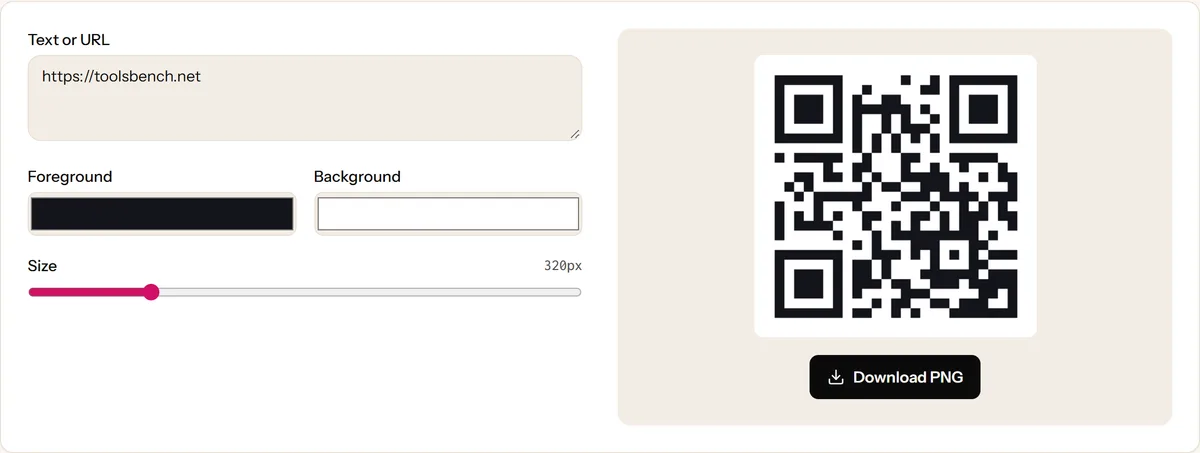
- Open the QR Code Generator.
- Type or paste your text or link into the box. The code updates as you type.
- Optionally change the foreground and background colors, and set the size (128 to 1,024 pixels).
- Click Download PNG.
That's it. Before you print anything, scan the downloaded code with your phone to check it opens what you expect.
What you can put in a QR code
A QR code just holds text. What happens when someone scans it depends on how that text is written. Phone cameras recognise a few common formats and offer the right action automatically.
A website or link
Paste the full address, including https://, for example https://toolsbench.net. Phones offer to open it in the browser.
Shorter links make simpler, easier-to-scan codes. If your link is very long, with tracking codes on the end, consider removing the parts you don't need.
Wi-Fi network
Guests scan it and join your Wi-Fi without typing the password. Use this format, replacing the network name and password:
WIFI:T:WPA;S:YourNetworkName;P:YourPassword;;
- Use T:WPA for normal WPA or WPA2 networks (almost all home and office routers), or T:nopass for an open network with no password.
- If your network name or password contains a semicolon, comma, colon or backslash, put a backslash in front of it.
- Both iPhone and Android cameras can join a network from this kind of code.
WhatsApp chat
Customers scan it and land straight in a chat with your business. Use your number in international format, without the plus sign, spaces or leading zero:
https://wa.me/923001234567
To pre-fill a message, add text on the end, with %20 for each space:
https://wa.me/923001234567?text=Hi%20I%20want%20to%20order
mailto:hello@example.com?subject=Order%20enquiry
Scanning opens a new email to that address with the subject filled in.
Phone number
tel:+923001234567
Scanning offers to call the number.
Plain text
Anything else, such as a short note, a serial number or a voucher code, is shown as text. Keep it short: the more text, the denser the pattern and the harder it is to scan from a small print.
How to print a QR code so it always scans
Most scanning problems come from printing, not from the code itself.
- Make it big enough. About 2 × 2 cm is a practical minimum for something scanned up close, like a business card. For posters, a common rule of thumb is that the code should be at least a tenth of the scanning distance: a code read from 1 metre away should be about 10 cm wide.
- Download a large size. Set the size slider high (1,024 pixels prints sharply at about 8–9 cm). Resizing a small PNG up makes the edges blurry.
- Keep strong contrast. Dark squares on a light background work best. Light codes on a dark background, or pale colors like yellow on white, confuse many scanners.
- Leave blank space around it. Scanners need a clear border, called the quiet zone, to find the code. Don't place text or busy pictures right up against its edges.
- Avoid shiny and curved surfaces where possible. Glare on glossy paper or a code wrapped around a bottle can stop it scanning.
- Test on more than one phone before printing a big batch, ideally including an older one.
If a code still won't scan, our guide on how QR codes work and why some won't scan explains the usual causes.
Reading a QR code from an image
Sometimes you have a QR code in a screenshot or a photo and no second phone to scan it with. The QR Code Scanner reads it from the image file and shows the text or link inside, so you can check where a code leads before opening it.
Quick answers
Is the QR code really free for commercial use? Yes. You can print it on products, menus and adverts. There's no watermark and no limit.
Will my QR code expire? No. It's a static code, so it works as long as the link or information inside it is still valid.
Can I change the link after printing? No. The link is part of the pattern, so a new link needs a new code. If you expect the destination to change, point the code at a page on your own website that you can update.
Can I track how many people scanned it? Not with a static code. One simple option is to add a tracking parameter to your link (such as ?source=poster) and check your website analytics.
Keep reading
More on Images
- Images
How QR Codes Work and Why Some Won't Scan
QR codes look like noise, but every square has a job, including repairing damage. Learn how they work and how to fix a code that won't scan.
6 min read
- Images
JPG vs PNG vs WebP: Which Image Format to Use
JPG, PNG or WebP? A practical guide to what each format does best, with simple rules for photos, logos, screenshots and website images.
5 min read