Images
How to Reduce Image Size to Under 100 KB or 200 KB for Online Forms
Job portals, visa forms and exam sites often reject photos over 100 or 200 KB. Here's the order that actually works (resize first, then compress) with real numbers from a 1.9 MB photo.
- By Fayaz Ali
- 5 min read
You've filled in a job application, a visa form or an exam registration, and the upload fails: "File size must be less than 100 KB." A photo straight from a phone is usually 2 to 5 MB, twenty to fifty times too big.
The fix takes two steps in the right order: make the image smaller in pixels, then lower its quality. Most people try only the second, and get stuck. You can do both for free with the Image Resizer and Image Compressor, which work in your browser, so ID photos and scans never leave your device.
Why lowering quality alone often isn't enough
We tested this with a real photo: 4032 × 2691 pixels and 1.9 MB, about the size a phone camera produces. These are the results from ToolsBench's tools:
| What we did | File size |
|---|---|
| Original photo (4032 × 2691) | 1.9 MB |
| Compressed only, 70% quality | 1,019 KB |
| Compressed only, 30% quality | 482 KB |
| Compressed only, 10% quality | 196 KB |
| Resized to 1200 px wide | 248 KB |
| Resized to 1200 px, then compressed at 80% | 134 KB |
| Resized to 1200 px, then compressed at 60% | 87 KB |
| Resized to 800 px, then compressed at 80% | 63 KB |
Even at 10% quality, which looks visibly blocky, the full-size photo stayed at 196 KB. Nearly eleven million pixels take room however hard you squeeze them. Resizing to 1200 pixels wide cut that to about one million pixels, and then a normal 60% quality setting got it under 100 KB with no visible damage at normal viewing size.
Step 1: check what the form asks for
Read the upload rules before you start. They usually set:
- Maximum file size, such as 100 KB or 200 KB, and sometimes a minimum, such as 20 KB.
- File format, almost always JPG or JPEG.
- Dimensions, sometimes exact pixels, such as 600 × 600 for a photo or 300 × 80 for a signature.
If the form gives exact pixel dimensions, use those in Step 3. If it gives only a file size, 1000 to 1200 pixels wide is plenty for a photo that will be viewed on screen.
Step 2: make sure it's a JPG
- iPhone photo (.HEIC)? Convert it with HEIC to JPG first. Our guide to HEIC on Windows explains why iPhones use it.
- PNG, such as a screenshot or a scanned signature? Convert it with PNG to JPG. The Image Compressor saves PNG files as WebP, which many forms reject, so convert first.
- Already a JPG? Go straight to Step 3.
Step 3: resize the image
- Open the Image Resizer and drop in your photo.
- Keep Lock aspect ratio ticked, so the photo isn't stretched.
- Type the width: the form's exact size if it gives one, otherwise around 1200. The height updates by itself.
- Click Resize, then Download.
If the form wants a square photo, crop it first with Crop Image, then resize.
Step 4: compress it to the size you need
- Open the Image Compressor and drop in the resized photo.
- Set the Quality slider. 70% is a good first try.
- Click Compress. The new file size appears under the result.
- Still too big? Lower the slider and click Compress again. Too small for a form with a minimum size? Raise it.
- Click Download.
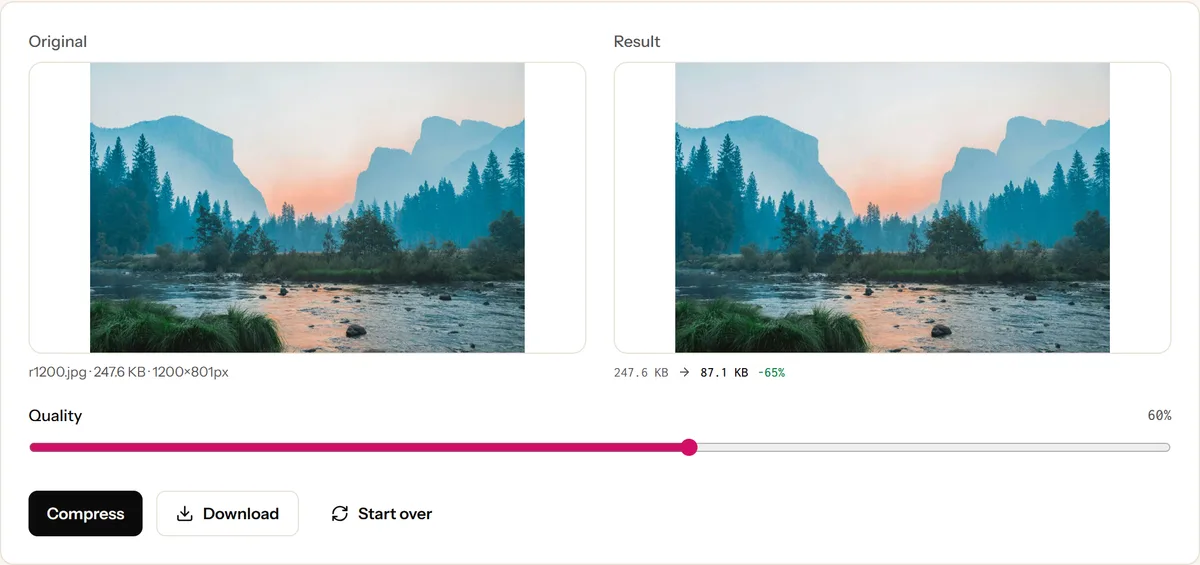
If the result is still too big at around 50%, go back to Step 3 and resize smaller. That works better than pushing the quality lower.
Tips for forms
- Aim about 10% under the limit. Websites disagree on whether a kilobyte is 1,000 or 1,024 bytes, so 90 KB is safe for a 100 KB limit.
- Check the photo before uploading. Zoom to 100% and look at faces and text. If they look smudged, use a slightly higher quality and a slightly smaller size.
- Signatures and documents need sharp edges. Keep quality at 70% or higher, and reduce pixels instead.
- Keep your original. The tools save a new file and never change the one on your device.
For the reasons behind these steps, read how to compress images without losing quality.
Reduce your image now
Resize your photo, then compress it under 100 KB. Both run in your browser, so your passport photo or ID scan never leaves your device.
Frequently asked questions
How do I reduce a photo to under 100 KB?
Resize it first, then compress it. In our test, a 4032 × 2691 photo of 1.9 MB came out at 87 KB after resizing it to 1200 pixels wide and compressing it at 60% quality. Lowering the quality alone, without resizing, only got it down to 196 KB.
Why is my image still over 100 KB at low quality?
Because it still has millions of pixels. Quality only changes how much detail each pixel keeps; the pixel count sets a floor. Make the image smaller in pixels with an image resizer, then compress it again.
Is 100 KB 100,000 bytes or 102,400 bytes?
It depends on the website, and most don't say. Aim for about 10% under the limit, such as 90 KB for a 100 KB limit, and either way the file will be accepted.
Can I reduce a PNG to under 100 KB?
Yes, but convert it to JPG first. The Image Compressor saves PNGs as WebP, which many forms don't accept. Convert with PNG to JPG, then resize and compress as usual.
Are my ID photos uploaded when I resize or compress them?
No. The ToolsBench image tools process photos in your browser, so passport photos and ID scans stay on your device.
Keep reading
More on Images
 Images
How QR Codes Work and Why Some Won't Scan
QR codes look like noise, but every square has a job, including repairing damage. Learn how they work and how to fix a code that won't scan.
6 min read
 Images
JPG vs PNG vs WebP: Which Image Format to Use
JPG, PNG or WebP? A practical guide to what each format does best, with simple rules for photos, logos, screenshots and website images.
5 min read