How to Convert a Bank Statement PDF to Excel
Convert a bank statement PDF to Excel and sort, filter and total your spending. Free, in your browser, with amounts converted to real numbers. Here's how, plus fixes for scanned and locked statements.
- By Fayaz Ali
- 3 min read
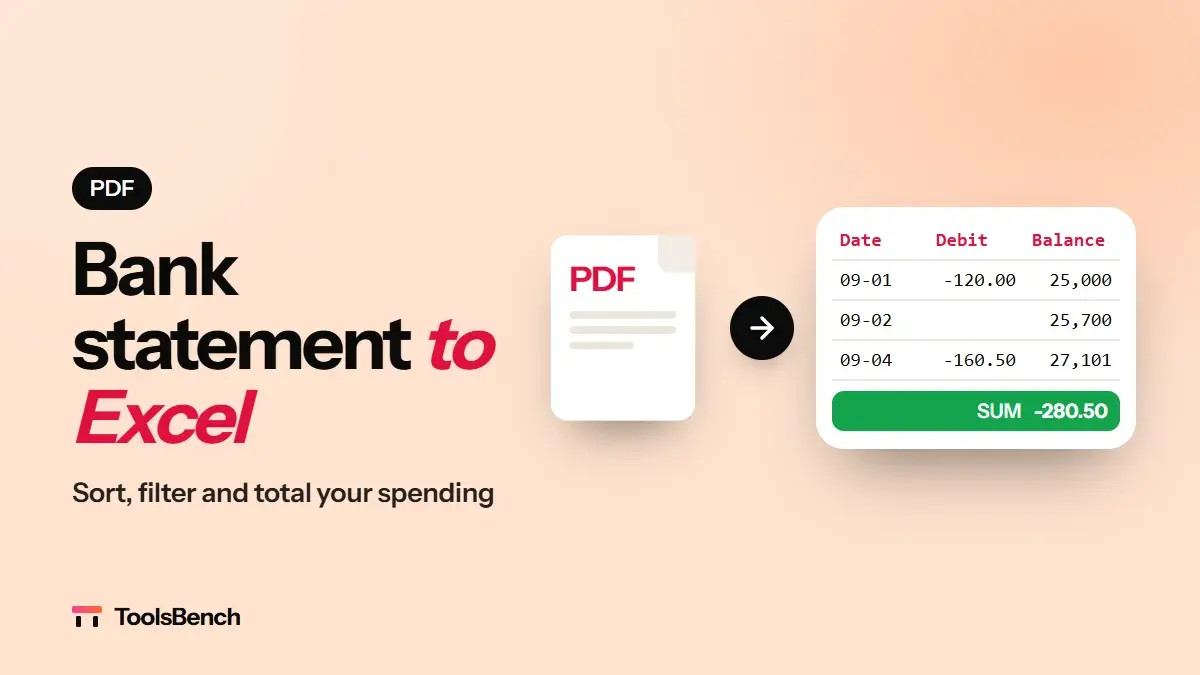
Your bank sends statements as PDFs, but a PDF is hard to work with: you can't sort the transactions, add up your spending or filter by shop. Converting the bank statement PDF to Excel fixes that in a minute.
This guide shows you how to convert a statement for free, how to make sure the numbers are right, and what to do with scanned or password-protected statements.
How to Convert a Bank Statement PDF to Excel
- Open the free PDF to Excel converter.
- Drag your statement onto the page, or click to choose it. It's read in your browser, so the file isn't uploaded.
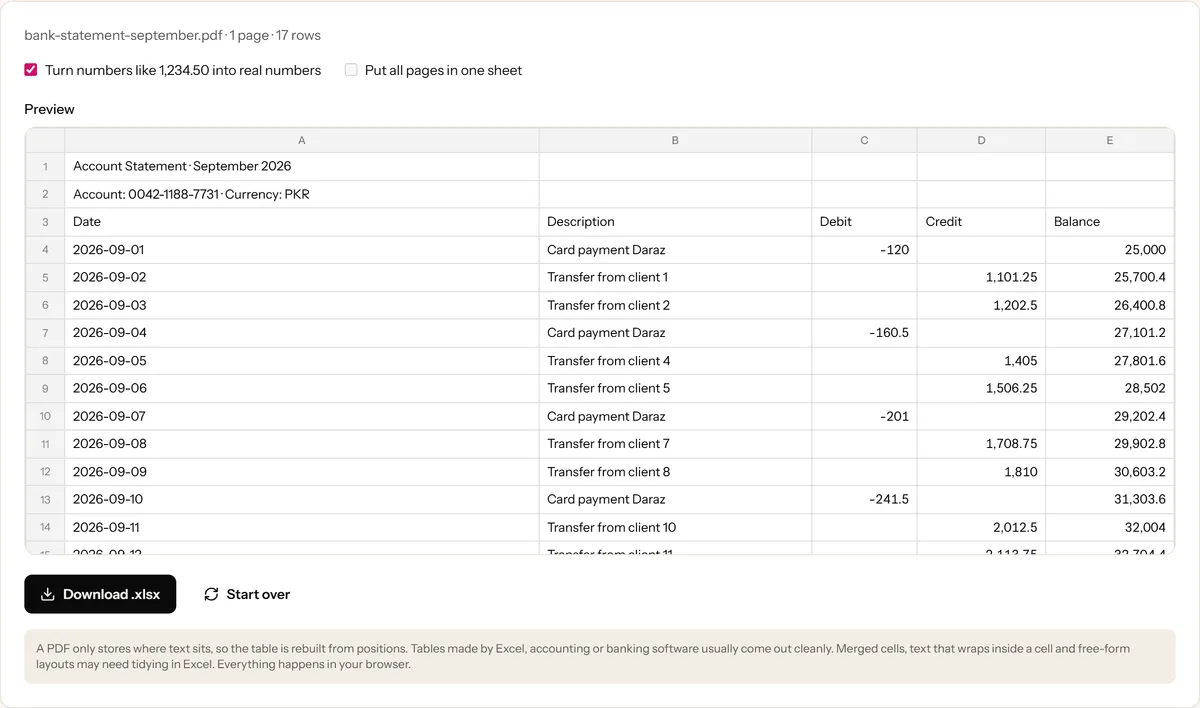
- Check the preview. Each transaction should be on its own row, with the date, description and amounts in separate columns.
- Keep Turn numbers like 1,234.50 into real numbers ticked, so Excel can calculate with them.
- For a statement with several pages, tick Put all pages in one sheet to get one continuous list.
- Click Download .xlsx and open it in Excel, Google Sheets or LibreOffice.
How the Numbers Are Converted
Amounts in a PDF are just text. The converter turns them into real numbers so formulas work:
| In the PDF | In Excel |
|---|---|
1,234.50 |
1234.5 |
(120.00) |
-120 |
15% |
0.15 |
2026-09-01 |
stays as a date (text) |
0042-1188-7731 |
stays as text |
Dates, account numbers and anything with a leading zero stay exactly as written, so nothing is changed by accident. If you'd rather keep every value as text, untick the numbers option before downloading.
Check Your Totals After Converting
Before relying on the spreadsheet, take ten seconds to check it:
- Select the Debit column and look at the sum at the bottom of the Excel window.
- Compare it with the total debits printed on the statement.
- Do the same for Credit.
If the totals match, every transaction came through. If not, look for a row where text wrapped onto two lines, which is the most common cause.
What to Do With the Spreadsheet
Once your transactions are in Excel, a few simple steps go a long way:
- Sort by amount to find your biggest expenses.
- Filter the description column for a shop or company, such as "Daraz" or "K-Electric", to see everything you spent there.
- Add a Category column (Food, Bills, Shopping) and use a PivotTable to total each one.
- Combine months. Join several statements with Merge PDF, then convert once with Put all pages in one sheet ticked.
Scanned or Password-Protected Statements
The statement is password-protected
Many banks lock statements with a password such as your date of birth or the last digits of your account number. Remove it first with Unlock PDF: type the password and download an unlocked copy, then convert that. You do need to know the password.
The statement is a scan
If the statement is a photo or a scan, each page is a picture with no text inside, and the converter will tell you so. Run it through PDF OCR first to recognize the text. Scans are harder to turn into clean columns, so check the result carefully.
Is It Safe to Convert a Bank Statement Online?
Bank statements are some of the most private documents you have. With ToolsBench, the PDF is read and the spreadsheet is created entirely in your browser, so the statement never leaves your device. No account is needed, and nothing is stored.
With other online converters, check whether your file is uploaded to their servers before you use them for financial documents.
Final Thoughts
Converting a bank statement PDF to Excel turns a document you can only read into data you can sort, filter and total. Check the totals once after converting, and unlock or OCR the statement first if it's protected or scanned.
Ready to try it? Use the free PDF to Excel converter. No sign-up, and your statement stays on your device.
Frequently asked questions
Is my bank statement uploaded when I convert it?
No. ToolsBench reads the PDF and creates the spreadsheet in your browser, so your statement never leaves your device.
Will the amounts work in Excel formulas?
Yes. With Turn numbers into real numbers ticked, amounts like 1,234.50 become numbers and bracketed debits like (120.00) become negative numbers, so SUM and filters work.
Can I convert several months at once?
Yes. Join the statements with Merge PDF first, then convert once with Put all pages in one sheet ticked.
My statement is password-protected. What do I do?
Remove the password with Unlock PDF first. You need to know the password, which banks usually set to something like your date of birth or account number.
Keep reading
More on PDF
 PDF
PDFWhy Scanned PDFs Are So Much Bigger Than Typed Ones
A typed PDF can be 200KB while a scan of the same pages is 40MB. Here is why, and what actually helps: compression, lower DPI, or OCR.
5 min read
 PDF
PDFHow to Compress a PDF Without Losing Quality
PDF too big to email? Learn what bloats a PDF, how much compression is safe, and how to shrink it while keeping the text readable.
5 min read