How to Convert PDF to Word for Free Online
Convert PDF to Word for free, keeping headings, fonts and images. No sign-up, and your file never leaves your browser. Here's how, plus tips for scanned PDFs.
- By Fayaz Ali
- 4 min read
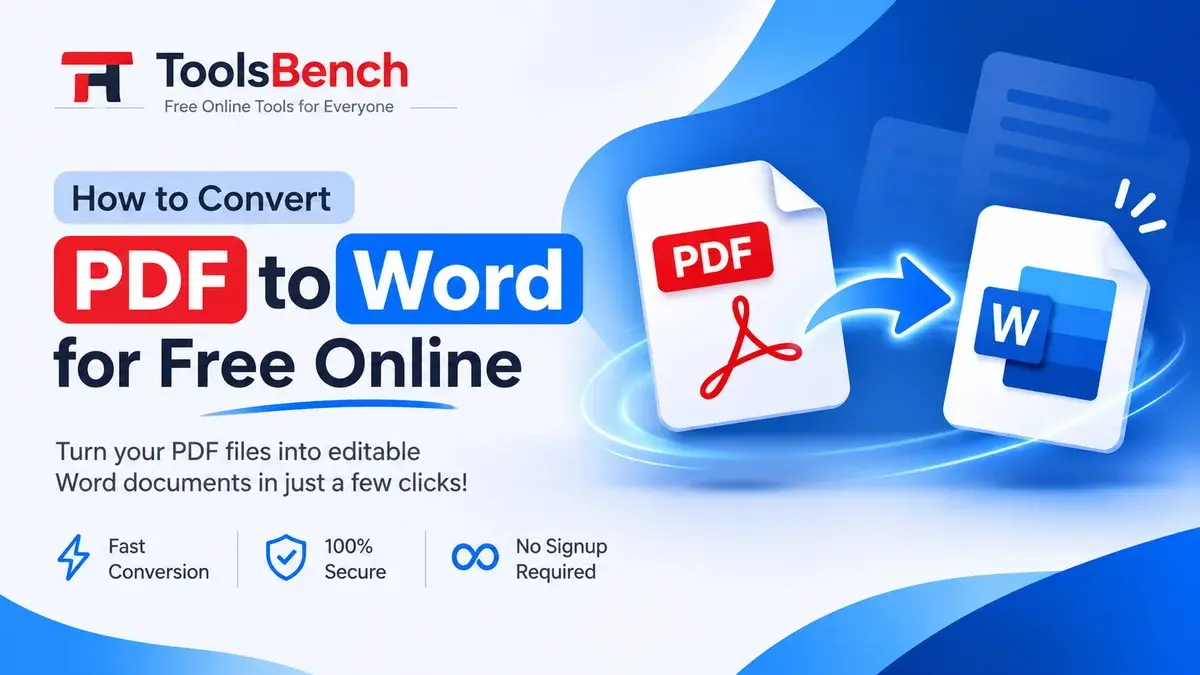
Need to edit a PDF? The easiest way is to convert PDF to Word, make your changes, and save it again. With ToolsBench you can do it for free, online, with no sign-up and nothing to install.
Converting lets you fix mistakes, update text and reuse content without retyping the whole document. This guide shows you how to convert PDF to Word for free, what keeps its formatting, and how to get the best result from different kinds of PDF.
How to Convert PDF to Word for Free
- Open the converter. Go to the free PDF to Word converter.
- Choose your PDF. Drag it onto the page or click to select it. The file is read in your browser, so it isn't uploaded anywhere.
- Pick a result. Choose Editable to get text you can change, or Exact copy to get pages that look identical to the PDF but can't be edited.
- Check the preview. In Editable mode you can see the headings and paragraphs before you download.
- Download the Word file. Click Download as .docx and open it in Microsoft Word, Google Docs or LibreOffice.
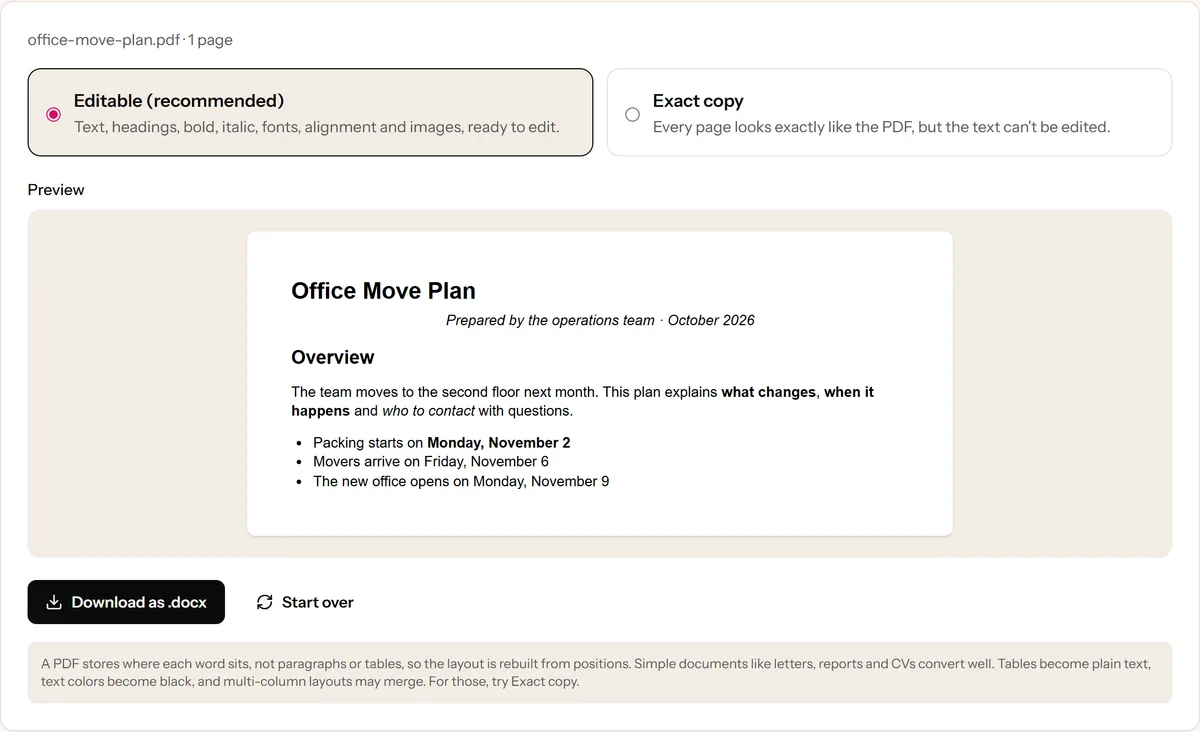
That's it. You can now edit the document instead of copying text out of the PDF by hand.
What Keeps Its Formatting When You Convert PDF to Word
A PDF records where every word sits on the page, but not what is a paragraph, heading or table. A converter has to rebuild that structure, so it helps to know what comes through. For a closer look at why, see what survives a PDF to Word conversion.
What converts well
- Text and paragraphs, in reading order
- Headings, bold and italic text
- Fonts and font sizes
- Alignment and spacing, including centered and justified text
- Bullet points typed as characters, such as •
- Images and logos, in their place
- Page size and page breaks
What may need fixing
- Tables arrive as text without the grid, so rebuild them with Word's Insert Table.
- Text colors become black.
- Multi-column layouts, such as newsletters, may have their columns merged.
- Brochures and forms with complex designs are better converted as an Exact copy.
Tips for a Better PDF to Word Conversion
Start with a PDF that has real text
Open the PDF and try to select a sentence. If the text highlights word by word, it will convert well. If nothing highlights, the PDF is a scan, so see the section below.
Check tables and colors
Compare tables, charts and colored text with the original PDF, and fix them in Word where needed.
Review page breaks
Word may lay out text slightly differently from the PDF, so a paragraph can move to the next page. Scroll through the document before you print or share it.
Keep the original PDF
Keep the PDF until you have checked the Word file, so you can compare the two and recover anything that didn't convert.
How to Convert a Scanned PDF to Word
A scanned PDF stores each page as a picture, so there is no text inside to edit. The converter tells you when a PDF looks scanned. You then have two options:
- Choose Exact copy to put the pages into Word as they are.
- Run the file through PDF OCR first to recognize the text, then edit it.
OCR works best on clear, straight scans of printed text. Blurry pages and handwriting produce more mistakes, so check the recognized text before relying on it.
PDF vs. Word: What's the Difference?
| Feature | Word document | |
|---|---|---|
| Main purpose | Keep the layout the same everywhere | Create and edit content |
| Editing text | Needs a PDF editor | Easy |
| Layout | Looks the same on every device | Can change with fonts and software |
| Best for | Sharing final documents | Drafts and revisions |
| File extension | .pdf |
.docx |
Use PDF when you want to share a finished document. Use Word when you need to edit, update or collaborate. When you're done editing, Word to PDF turns the document back into a PDF.
Is It Safe to Convert PDF to Word Online?
With ToolsBench, the conversion runs entirely in your browser. Your PDF is read and the Word file is created on your own device, so the file is never uploaded to a server. That makes it a good choice for contracts, payslips and other private documents.
With other online converters, check how they handle your files before uploading anything sensitive.
Final Thoughts
Converting PDF to Word is the quickest way to edit a document you only have as a PDF. Start with a PDF that has real text, choose Editable for documents you want to change, and check tables and page breaks before sharing.
Ready to try it? Use the free PDF to Word converter. No sign-up, nothing to install.
Frequently asked questions
Is the PDF to Word converter really free?
Yes. It's free with no sign-up, no watermark and no limit on how many files you convert.
Can I convert PDF to Word on my phone?
Yes. Open the PDF to Word converter in your phone's browser on Android or iPhone, choose the PDF and download the .docx. There's nothing to install.
Will my Word file look exactly like the PDF?
In Editable mode, headings, fonts, bold and italic text, alignment, images and page breaks are kept. Tables become plain text and colors become black. Choose Exact copy if the document must look identical.
Can I open the converted file in Google Docs?
Yes. The converter creates a standard .docx file, which opens in Microsoft Word, Google Docs, LibreOffice and Apple Pages.
Keep reading
More on PDF
 PDF
PDFWhy Scanned PDFs Are So Much Bigger Than Typed Ones
A typed PDF can be 200KB while a scan of the same pages is 40MB. Here is why, and what actually helps: compression, lower DPI, or OCR.
5 min read
 PDF
PDFHow to Compress a PDF Without Losing Quality
PDF too big to email? Learn what bloats a PDF, how much compression is safe, and how to shrink it while keeping the text readable.
5 min read