How to Password Protect a PDF for Free
Lock a PDF with a password in under a minute, for free and without uploading it. Here's how to password protect a PDF with AES-256 encryption, and how to choose a password that holds up.
- By Fayaz Ali
- 3 min read
Sending a payslip, contract or bank statement as a PDF? If it lands in the wrong inbox, anyone can read it. The fix takes less than a minute: password protect a PDF so it only opens for people who know the password.
This guide shows you how to do it for free with ToolsBench, what the protection really does, and how to pick a password that can't be guessed.
How to Password Protect a PDF for Free
- Open the free Protect PDF tool.
- Drag your PDF onto the page, or click to choose it. The file stays in your browser and isn't uploaded.
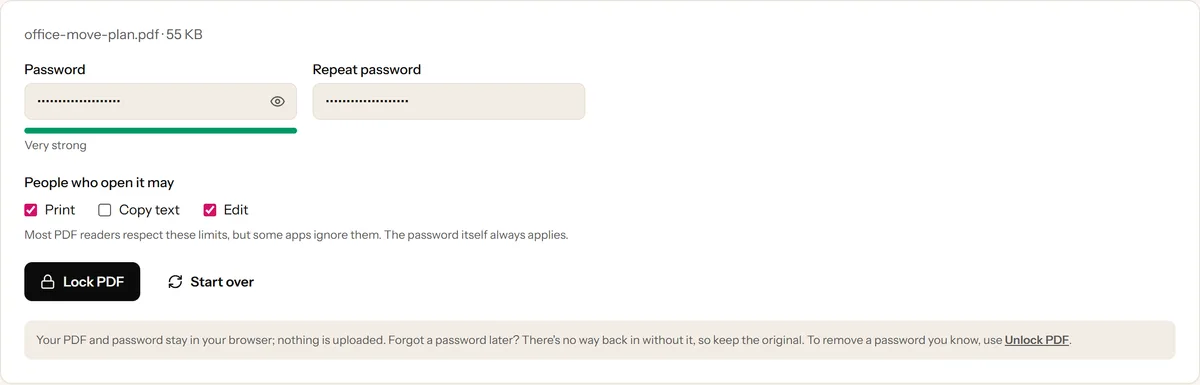
- Type a password, then type it again in Repeat password. A bar shows how strong it is.
- Optionally untick Print, Copy text or Edit to limit what people can do once the file is open.
- Click Lock PDF, then Download PDF.
The new file has -protected added to its name. Open it to check: your PDF reader should ask for the password before showing anything.
What Password Protection Actually Does
A password-protected PDF isn't just a file with a lock icon. The contents are encrypted: scrambled with a key that only the password can unlock. Without it, the pages are unreadable, whatever app is used to open them.
ToolsBench uses AES-256, the encryption standard set by PDF 2.0 and the same strength Adobe Acrobat uses. It's the strongest option a PDF can have.
Open password vs. permissions
There are two separate kinds of protection, and it helps to know the difference:
- The open password stops anyone from viewing the file at all. This is real protection.
- Permissions (no printing, no copying, no editing) apply after the file is opened. Most PDF readers respect them, but some apps ignore them, so think of them as a request rather than a guarantee.
If you need to keep a document private, the password is what matters.
How to Choose a Strong Password
Encryption is only as good as the password. Software can try millions of guesses, so a short or obvious password like 123456, a name or a date of birth won't hold up for long.
- Make it long. Aim for at least 10 to 14 characters. Length matters more than symbols.
- Use a few random words. Something like
river-lamp-orange-42is long, strong and still easy to type. - Don't reuse it. Use a different password from your email or bank login.
- Let a tool pick one. The Password Generator makes a random one in a click.
For more on this, see how to make a strong password you can remember.
How to Share a Protected PDF Safely
A locked PDF is only as safe as the way you share the password.
- Send the password separately. Email the PDF and send the password by WhatsApp, SMS or a phone call. If both travel in the same email, anyone who gets the email gets both.
- Agree on it in advance for regular documents, such as monthly payslips, so you don't need to send it each time.
- Keep the original. There's no way to recover a forgotten password, so keep your unprotected copy somewhere safe.
How to Remove a Password From a PDF
Got a protected PDF you need to open often, like a bank statement locked with your date of birth? If you know the password, Unlock PDF removes it and saves an unprotected copy. It also removes printing and copying restrictions from PDFs that open without a password.
It can't open a PDF whose password you don't know. No honest tool can: that's the point of the encryption.
Is It Safe to Protect a PDF Online?
With ToolsBench, the encryption happens entirely in your browser. Your PDF and your password never leave your device, so nothing is sent to a server or stored anywhere. That's what you want for the private documents you're trying to protect in the first place.
Final Thoughts
Password protecting a PDF takes less than a minute and keeps private documents private if they end up in the wrong place. Use a long password, send it separately from the file, and keep the original.
Ready to lock your PDF? Use the free Protect PDF tool. No sign-up, and nothing is uploaded.
Frequently asked questions
Is it free to password protect a PDF?
Yes. ToolsBench's Protect PDF is free, with no sign-up, no watermark and no limit on how many files you lock.
Can I password protect a PDF on my phone?
Yes. Open Protect PDF in your phone's browser on Android or iPhone, choose the PDF, set a password and download the locked file.
Will people need special software to open it?
No. Adobe Reader, browsers like Chrome and Edge, and phone PDF apps all open password-protected PDFs and simply ask for the password.
Can I remove the password later?
Yes, if you know it. Unlock PDF removes the password and saves an unprotected copy. Without the password, nobody can remove it.
Keep reading
More on PDF
 PDF
PDFWhy Scanned PDFs Are So Much Bigger Than Typed Ones
A typed PDF can be 200KB while a scan of the same pages is 40MB. Here is why, and what actually helps: compression, lower DPI, or OCR.
5 min read
 PDF
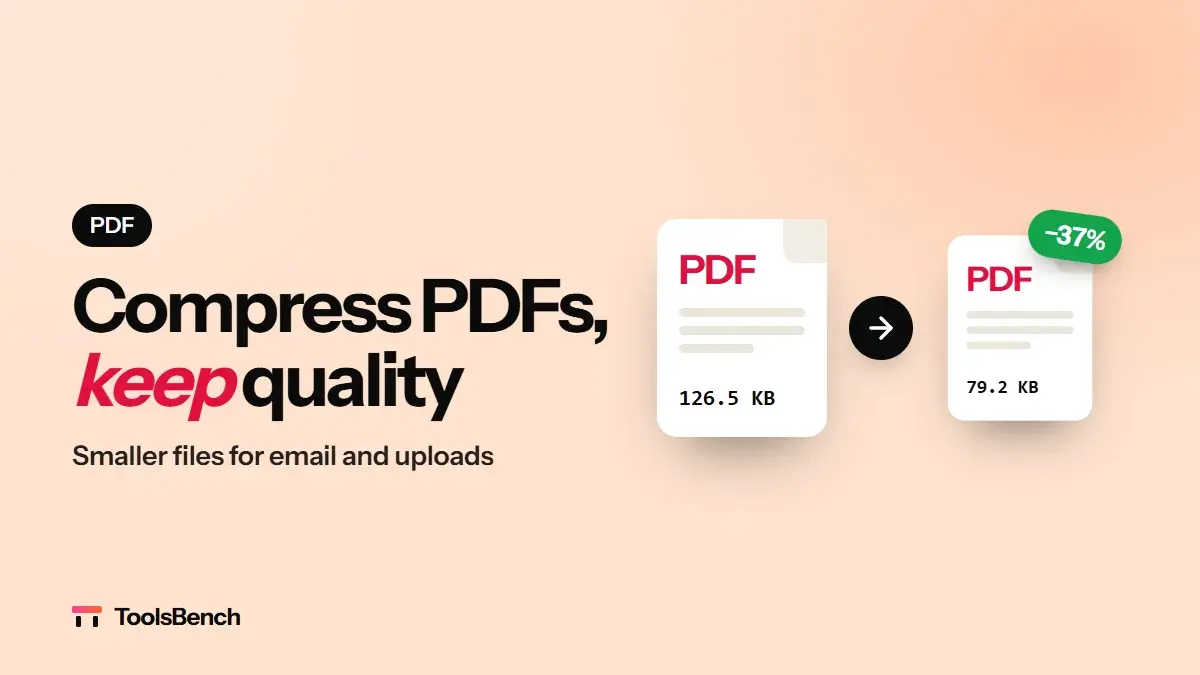
PDFHow to Compress a PDF Without Losing Quality
PDF too big to email? Learn what bloats a PDF, how much compression is safe, and how to shrink it while keeping the text readable.
5 min read