Is It Safe to Use Online PDF Tools? How to Protect Confidential Documents
Most online PDF tools upload your file to a server. Here's what that means for contracts, IDs and tax forms, and a 60-second test that shows whether a tool really keeps your file on your device.
- By Fayaz Ali
- 6 min read
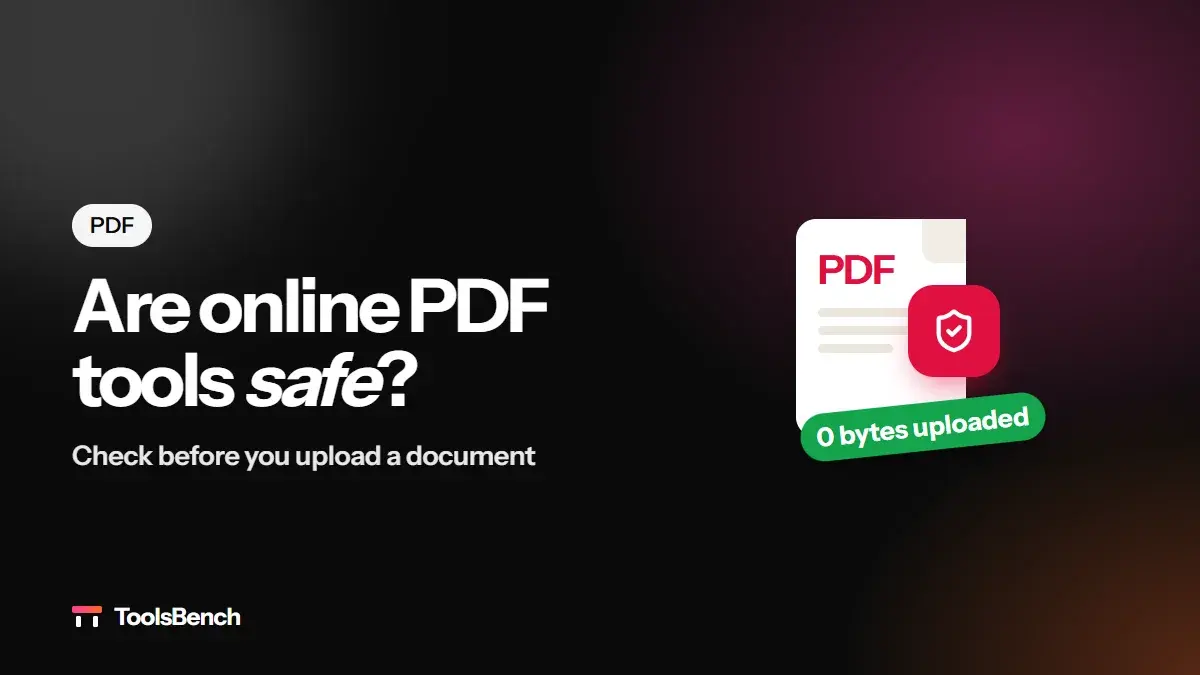
Contracts, payslips, passport scans, tax forms, medical letters: the documents people most often need to merge, compress or sign are also the ones they least want strangers to see. Yet most online PDF sites work by uploading your file to their server, doing the work there and sending the result back.
That isn't automatically unsafe, but it does mean trusting someone else with your document. There is another way: tools such as Merge PDF on ToolsBench do the work inside your browser, so the file never leaves your device. This guide explains the difference, the real risks, and a quick test that shows which kind of tool you are using.
What happens to your file on a typical online PDF site
On a server-based tool, this is the journey your document takes:
- Your browser uploads the file to the company's server.
- The server opens it, does the job and saves the result.
- You download the result.
- Both copies stay on the server until they are deleted.
HTTPS encrypts the file on its way there and back, so nobody on your Wi-Fi can read it. The risks start once the file has arrived:
- Storage. Copies sit on the server for minutes, hours or longer, depending on the company's policy.
- Access. Staff, contractors or other services the company uses may be able to reach stored files.
- Breaches. Any server that holds files can be hacked or misconfigured.
- Jurisdiction. The server may be in another country, under different privacy laws.
For a restaurant menu, none of this matters. For a signed contract or a scan of your ID, it is worth thinking about.
Two ways an online PDF tool can work
| Server-based tool | In-browser tool | |
|---|---|---|
| Where your file goes | Uploaded to the company's server | Stays on your device |
| What you have to trust | Their storage, staff and deletion policy | Only the page's code, which you can check |
| Speed | Depends on your upload speed | Depends on your device |
| Very large files | Usually fine | Limited by your device's memory |
Server-based tools have real strengths too. A server can run heavier software, which helps with very large files and some complex conversions. The point isn't that one kind is always better, but that you should know which kind you are using before you drop in a confidential file.
How to check a tool yourself in 60 seconds
You don't have to take any website's word for it, including ours. Every desktop browser can show you exactly what a page sends.
Verify it yourself
- Open the tool's page, then press F12 (or Ctrl+Shift+I; Cmd+Option+I on a Mac) to open developer tools.
- Click the Network tab, then the clear button (a circle with a line through it) to empty the list.
- Use the tool as normal: add your file and run it.
- Look at the Method column. An upload is a POST or PUT request whose size is close to your file's size. Click it and open Payload to see what was sent.
If no such request appears, your file stayed on your device.
You will usually still see some requests, and that's normal. Pages download their own code as you use them, prefetch the pages you might visit next, and often send analytics. These are GET requests that fetch things; they don't carry your file.
We ran this test on ToolsBench's Merge PDF on October 31, 2026, merging two PDFs of about 100 KB each. While the tool worked, the browser made 9 requests, every one a GET that downloaded page code or prefetched a link, and none of them sent any data. The 200 KB merged PDF was created and saved without leaving the computer.
A checklist before you use any online PDF tool
- Does it say where processing happens? "Secure" and "private" are vague. "Your file is processed in your browser" is a specific claim you can test.
- Run the Network tab test the first time you use a new tool for something sensitive.
- Read the privacy policy of any tool that uploads: how long files are kept and who can see them.
- Share less. Remove pages the other person doesn't need with Delete Pages before sending a document.
- Lock what you email. Protect PDF adds a password, so an intercepted or forwarded attachment can't be opened without it. Our guide on how to password protect a PDF covers the details.
- For the most sensitive files, such as passports, medical records or tax returns, use an in-browser tool or software installed on your computer.
Which ToolsBench PDF tools run in your browser
All of them process your files on your device: merging, splitting, compressing, rotating, converting, signing, protecting and the rest. One works slightly differently: PDF OCR downloads its text-recognition data the first time you use it. That download comes to your browser; your PDF still isn't sent anywhere.
The site does use Google Analytics and shows ads. Those record page visits, not the contents of your files, and the privacy policy explains exactly what is collected.
Two honest limits of working in the browser:
- Very large files depend on your device. A phone has less memory than a server, so a PDF of several hundred pages can be slow.
- Compress PDF shrinks files by turning each page into an image, so text stops being selectable. Our guide on compressing a PDF explains when that matters.
Do the job without uploading
- Merge PDF files into one, in your browser. The step-by-step merge guide walks through it.
- Compress a PDF for an email or upload limit.
- Sign a PDF without printing it.
Open developer tools while you do it, and watch your file stay put.
Frequently asked questions
Are online PDF converters safe?
Many are run responsibly, but most work by uploading your file to their server, so you are trusting how they store, protect and delete it. For confidential documents, prefer a tool that processes the file in your browser, and check that it really does with the Network tab test.
How can I tell if a PDF tool uploads my file?
Open your browser's developer tools (F12), go to the Network tab, clear the list and run the tool. An upload shows up as a POST or PUT request whose size is close to your file's size. If no such request appears, the file stayed on your device.
Is HTTPS enough to keep my document safe?
No. HTTPS protects the file while it travels to the server, but not what happens after it arrives. Once uploaded, the file is stored, at least briefly, on someone else's computer.
Do online PDF sites delete my files?
Many say they delete uploads after a set time, often a few hours. That is a promise in their privacy policy, not something you can check yourself, so read the policy before uploading anything sensitive.
Is ToolsBench safe for confidential PDFs?
ToolsBench's PDF tools process files in your browser, and the file isn't uploaded. PDF OCR downloads its text-recognition data the first time you use it, but your PDF still stays on your device. You can confirm it yourself with the Network tab test in this guide.
Keep reading
More on PDF
 PDF
PDFWhy Scanned PDFs Are So Much Bigger Than Typed Ones
A typed PDF can be 200KB while a scan of the same pages is 40MB. Here is why, and what actually helps: compression, lower DPI, or OCR.
5 min read
 PDF
PDFHow to Compress a PDF Without Losing Quality
PDF too big to email? Learn what bloats a PDF, how much compression is safe, and how to shrink it while keeping the text readable.
5 min read